

The LCC Unity SDK supports loading effects. A loading effect spreads outward 720 degrees from a specified point, simulating a process of appearing from nothing. The following describes the complete steps for implementing the loading effect.
Step 1: Create the scene and GameObjects
Create a brand-new scene in Unity. Unity creates Main Camera and Directional Light by default.
Set up Main Camera
Select Main Camera in the Hierarchy window, and set its properties in the Inspector window as shown below.
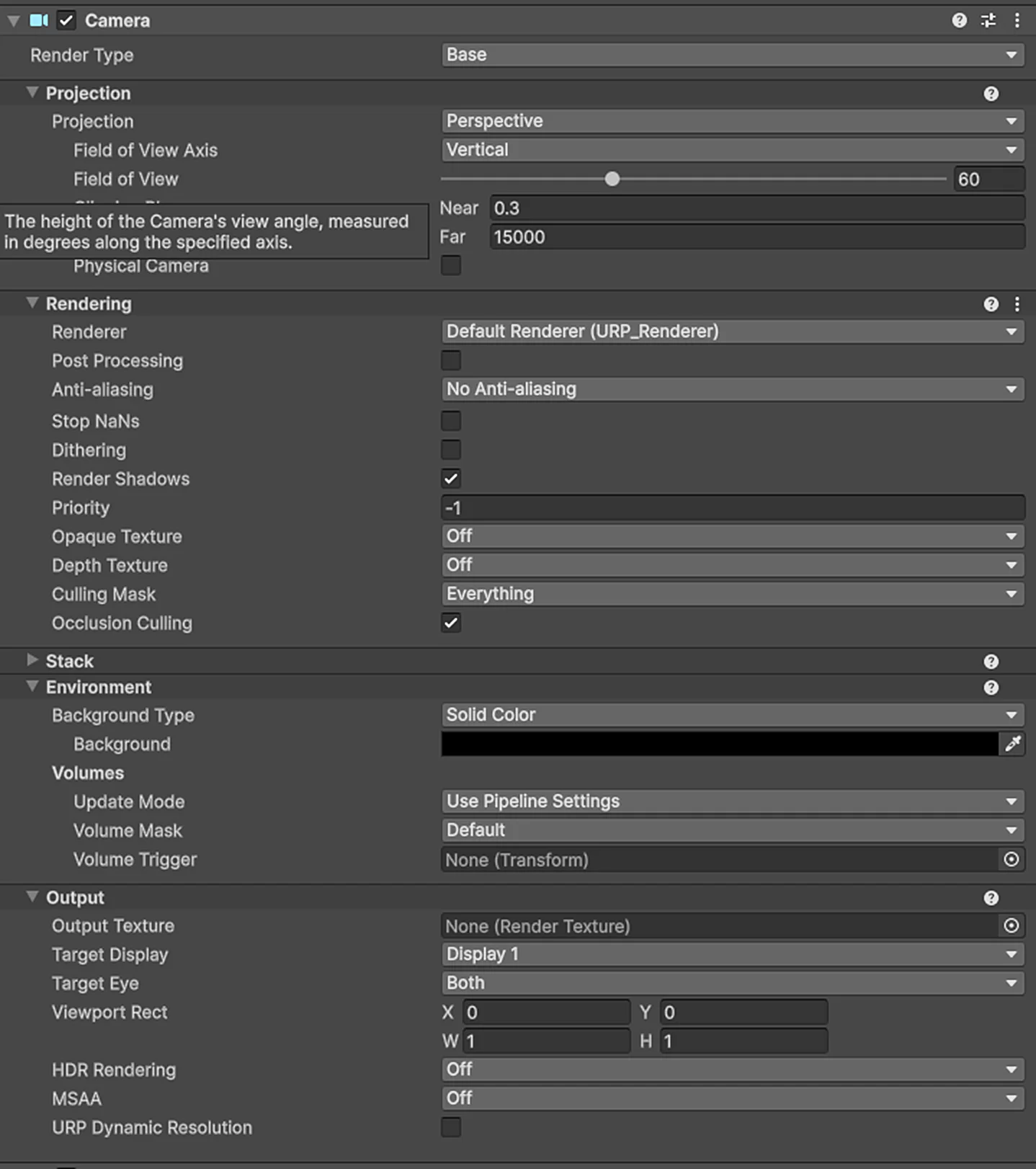
Set the Main Camera properties
Create LCCManager
Right-click an empty area in the Hierarchy window, select Create Empty from the pop-up menu to create an empty GameObject, name it LCCManager, normalize its Transform, and add the LCCManager script to it via Add Component.
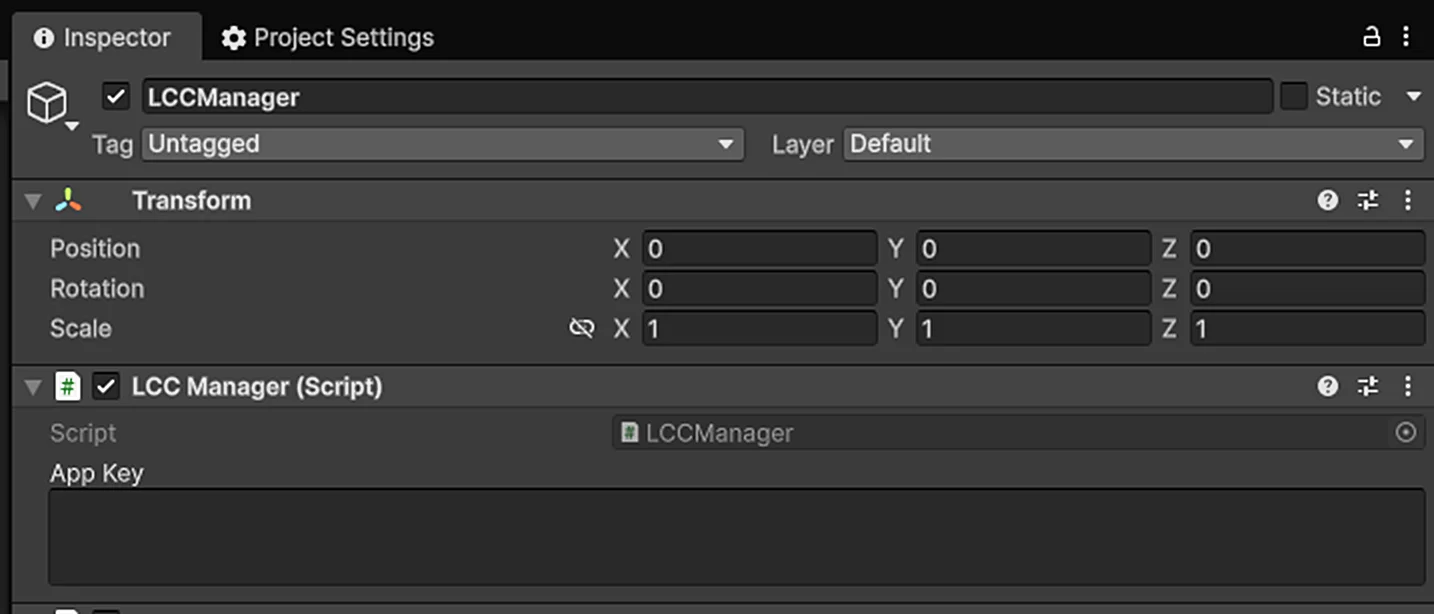
Create the LCCManager GameObject and add the LCCManager script
Create LCCRenderer
Right-click an empty area in the Hierarchy window, select Create Empty to create an empty GameObject, name it LCCRenderer, and set its Transform to Rotation.x = -90 and Scale.x = -1.
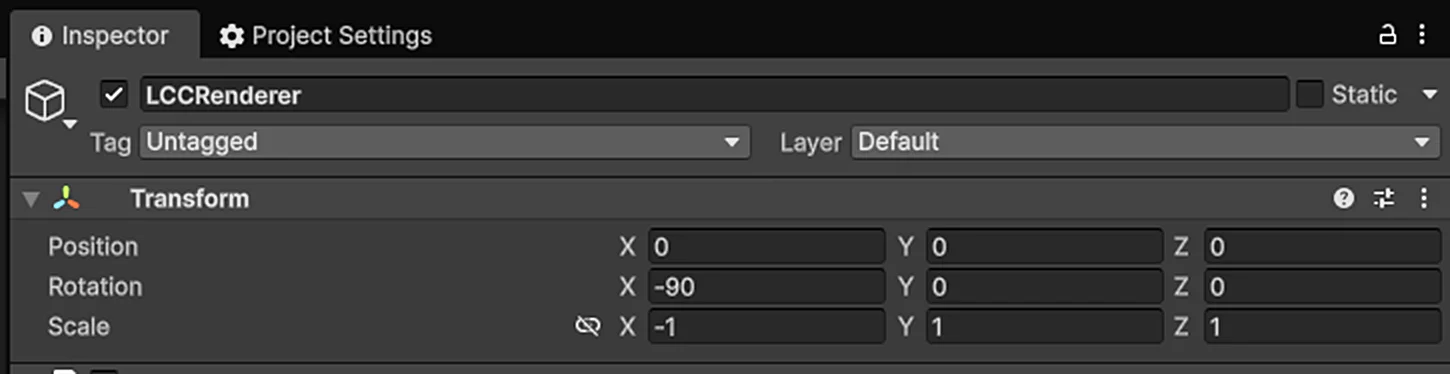
Create LCCRenderer and set its Transform (Rotation.x = -90, Scale.x = -1)
Note:
The Transform settings of the LCCRenderer GameObject (Rotation.x = -90, Scale.x = -1) align it with the LCC data coordinate system. For details on coordinate system alignment, see "LCC Data Coordinate System" in Unity SDK Introduction.
Step 2: Write a script to trigger the effect
Create a new C# script named VFX.cs with the following code:
using LCCCore;
using UnityEngine;

public class VFX : MonoBehaviour
{
    public LCCManager m_manager;
    public string m_FilePath;
    private LCCCore.Renderer m_renderer;

    void Start()
    {
        m_manager.SetPlatformType(PlatformType.PC);
        m_manager.SwitchRenderPass(ActiveRenderMode.SingleRender);

        Debug.Log("Started, loading data...");
        m_renderer = m_manager.GetRender(this.transform);
        m_renderer.Load(m_FilePath, onProgress, onComplete);
    }

    private void onProgress(float _progress)
    {
        Debug.Log($"Load progress: {_progress:P1}");
    }

    private void onComplete()
    {
        Debug.Log("Load complete, enabling VFX ...");
        Vector3 pos = Camera.main.transform.position + Camera.main.transform.forward * 2.0f;
        m_manager.TriggerVFX(pos);
    }
}
Note:
The effect must be triggered after the LCC scene finishes loading, so
TriggerVFX()is called in theonCompletecallback. In this example, after data finishes loading, the effect is triggered 2 meters in front of the rendering camera.
Step 3: Attach the script and set the data path
- Attach the
VFX.csscript to the LCCManager GameObject in the Hierarchy window. - In the Inspector window, drag the LCCManager GameObject onto the script's Manager property.
- Fill in the LCC file path in the script's File Path property.
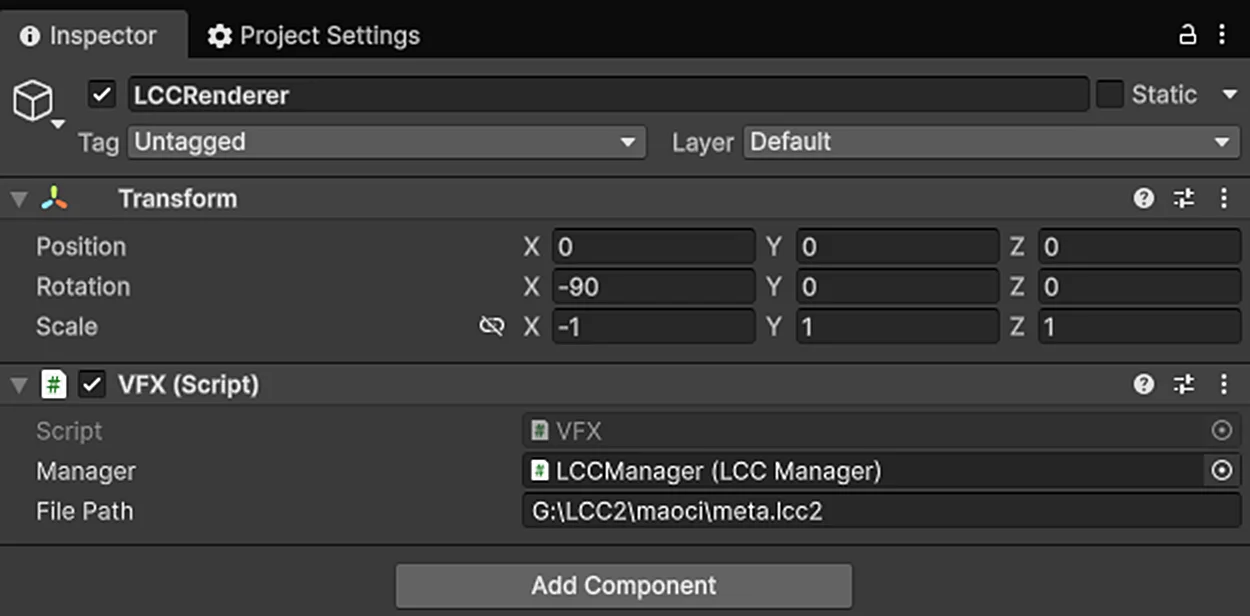
Attach the VFX script and set the Manager and File Path properties
Step 4: Run
Click the Play button in the Game window to see the real-time loading effect in the scene. The effect spreads outward 720 degrees from the trigger point.
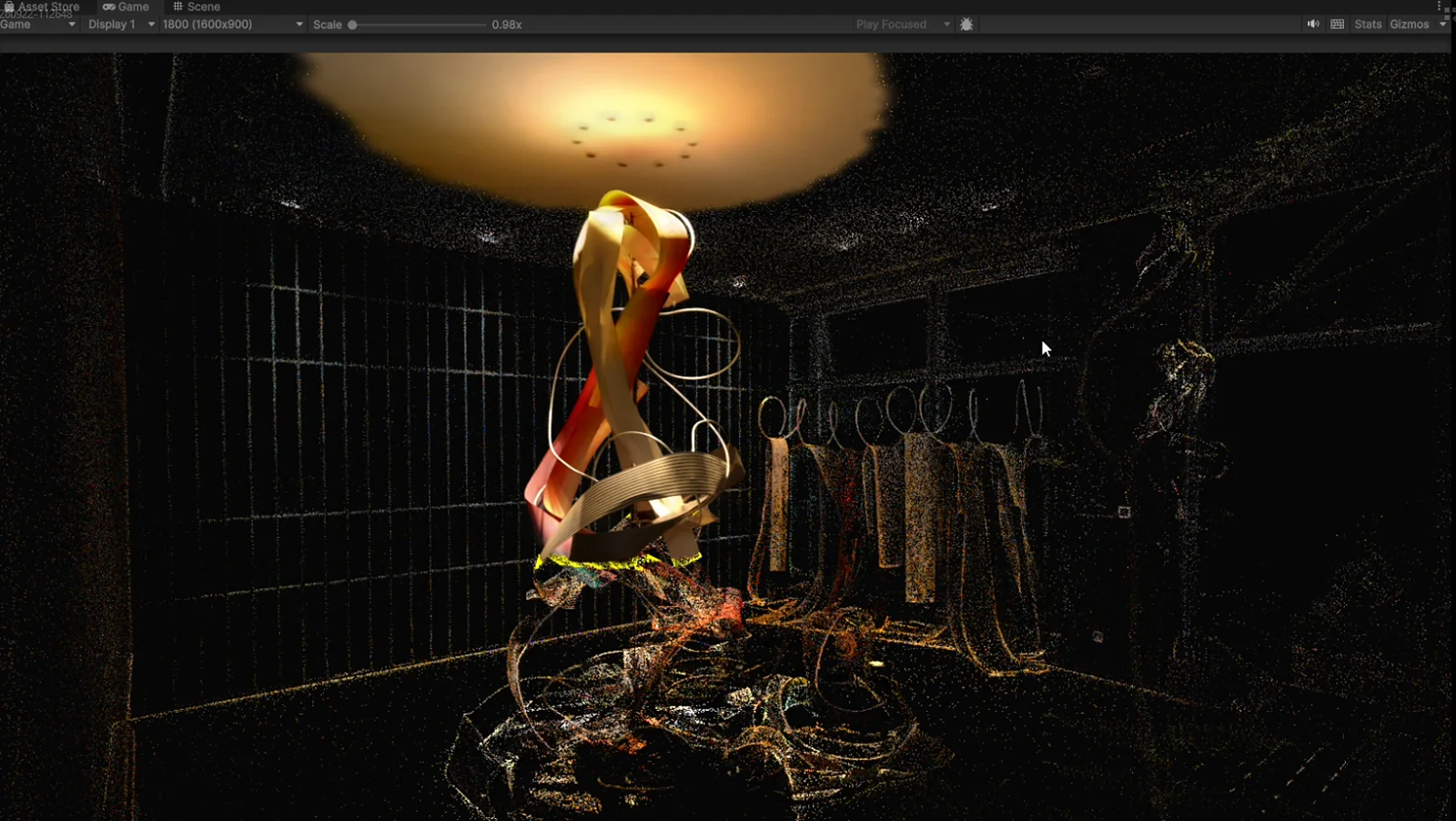
The real-time loading effect in the scene after running
Key Steps
The key steps for loading an effect in a 3DGS scene:
- Make sure the LCCManager and LCCRenderer GameObjects have been created in the scene with the correct Transform.
- Make sure the effect is triggered in code after the LCC scene finishes loading (that is, in the
onCompletecallback). - The world coordinate passed into
TriggerVFX()determines the origin of the effect's spread.
Effect-related API
The LCC Unity SDK provides the effect-triggering API through LCCManager. It must be called after the LCC scene finishes loading (that is, in the onComplete callback).
TriggerVFX
// Return value: void
public void TriggerVFX(Vector3 vfxOriginW, int vfxid = 0)
Triggers the effect at the specified world coordinate, and the effect spreads outward 720 degrees from that coordinate point.
| Parameter | Type | Description |
|---|---|---|
vfxOriginW | Vector3 | World coordinate origin of the effect |
vfxid | int | Effect ID, optional, default is 0 |
Usage example:
Vector3 pos = Camera.main.transform.position + Camera.main.transform.forward * 2.0f;
m_manager.TriggerVFX(pos);
Notes:
- Must be called after the LCC scene finishes loading.
vfxOriginWis the world coordinate of the effect's starting point.- After calling, the shader keyword is switched to
_VFXMIX.
This chapter is from the official XGRIDS user manual. Official source (opens in a new tab) · Updated:



