

LCC Unity SDK supports separating the application from the data. However, in actual application development, sometimes you need to package and publish the application together with the 3DGS scene data. This document introduces the co-packaging approaches for PC and Android.
PC Runtime Dynamic Data Loading
The SDK loads data at runtime through the Load() method; the specified path needs to be an absolute path, for example G:\Data\xxx.lcc2.
To distribute the application and data together, you can concatenate the application's execution path with the LCC scene data's relative path into an absolute path, as follows:
- Get the application's execution path through Unity's
Application.dataPath. - Concatenate the data relative path with the execution path into the absolute path of the 3DGS scene data.
The code example is as follows:
using UnityEngine;
using LCCCore;
using XGrids.LCC;

public class LCCRenderer : MonoBehaviour
{
    public LCCManager m_manager;
    public string m_FilePath;
    private LCCCore.Renderer m_renderer;

    void Start()
    {
        m_renderer = m_manager.GetRender(this.transform);

#if !UNITY_EDITOR
        string _dataPath = Application.dataPath;
        string _dataPath2 = _dataPath + "/data/meta.lcc2";   // Concatenate the LCC file relative path
        m_FilePath = _dataPath2.Replace('/', '\\');
#endif

        m_renderer.Load(m_FilePath, onLoadProgress, onLoadCallback);
    }
}
Note:
- The path concatenation above is wrapped with
#if !UNITY_EDITOR: in the Unity Editor state, them_FilePathspecified in the Inspector (local development data) is used directly; only in the published runtime is the relative path under the application execution directory concatenated.- In a PC build,
Application.dataPathpoints to the<AppName>_Datafolder under the application directory, so the data relative path must match the location where the data will later be copied.- Windows paths use backslashes
\; the example usesReplace('/', '\\')to convert them.
Copy LCC Scene Data to a Specified Directory
After building the Unity project normally and compiling/publishing the application, the generated application directory structure is shown below.
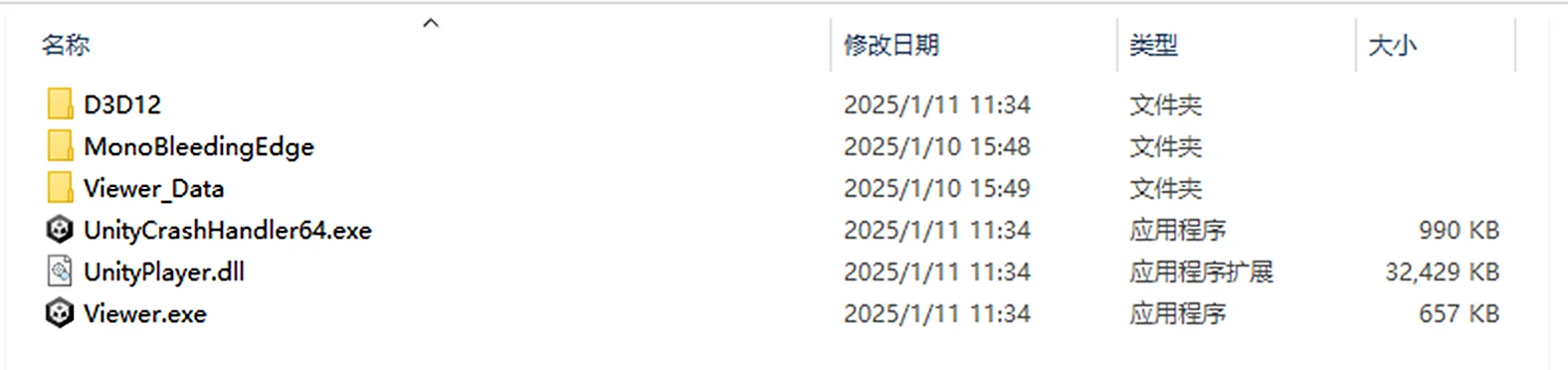
Application directory structure generated after Unity build and publish
According to the LCC relative path data/meta.lcc2 in the code, you need to copy the LCC scene data to the corresponding location under the application's generated directory, as shown below.
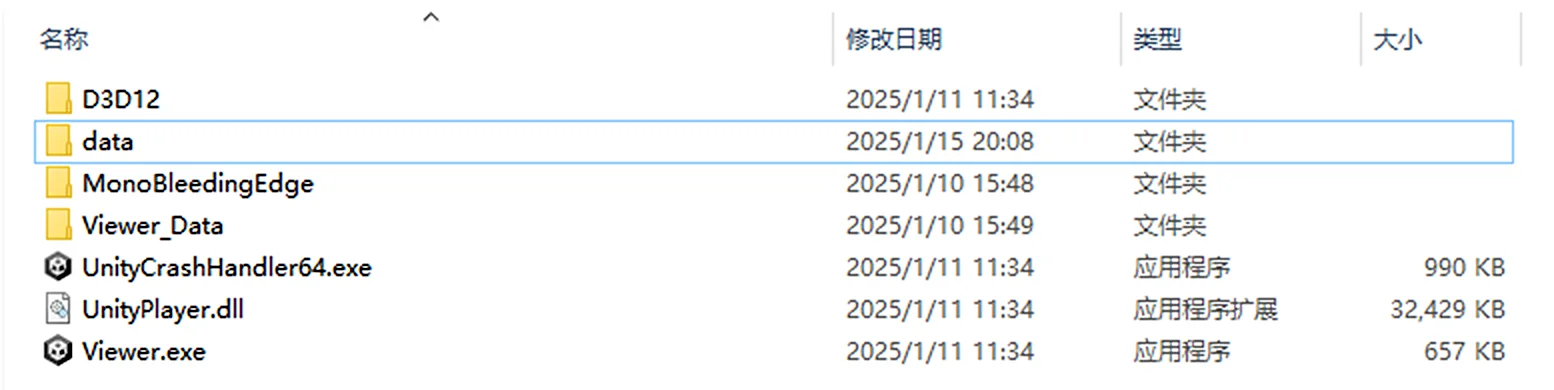
Copy the LCC scene data to the application directory according to the relative path
Package the Entire Directory
Package the entire application directory (Zip compression) and distribute it to the users who need it. After the user extracts it and runs the Viewer, the scene data in the specified directory can be loaded.
Android Packaging Workflow
Android uses the same approach as PC, but the data path needs a small modification: use Application.persistentDataPath as the data root directory.
Modify the rendering script to concatenate the data path with persistentDataPath. Note that the platform type is set separately via SetPlatformType() (before GetRender()), and Load() only receives the path and callbacks:
void Start()
{
    // The platform type must be set before GetRender()
    m_manager.SetPlatformType(PlatformType.Pico);

    m_renderer = m_manager.GetRender(this.transform);
    m_renderer.Load(
        $"{Application.persistentDataPath}/LccData/meta.lcc2",
        onLoadProgress,
        onLoadCallback);
}
Packaging and deployment steps:
- Save the code, and connect the mobile device to the computer where the Unity project is located using a USB 3.0 cable.
- In the Unity menu bar, select File → Build Settings → Build to get the APK.
- Copy the APK to the mobile device and install it.
- After installation, open the app once first so the system creates the directory for the corresponding package name, then close the app.
- Create an
LccDatafolder under the directory for the corresponding package name, and copy the LCC data into that folder (the path is generally Android device storage → Android → data → app BundleID → Files; refer to the Android app installation path for the specific directory). - Open the app again, and the LCC content will be presented on the phone or VR device.
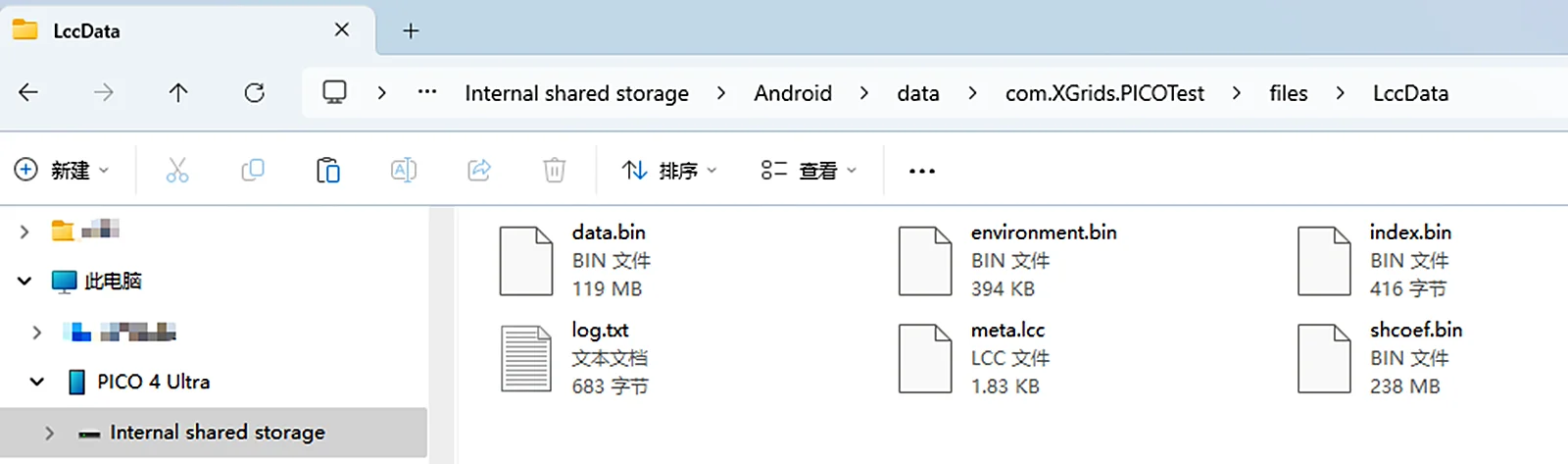
Create an LccData folder under the Android app package-name directory and copy the LCC data in
Notes
- iOS does not support the local directory dynamic loading approach above. iOS does not allow an application to read all files under a specified folder; it can only read a single specified file.
- On mobile and VR, it is recommended to place the data on a server and pull the data from the server at runtime, rather than directly packaging the data into the APK application package — the latter makes the application package very large and bloated.
This chapter is from the official XGRIDS user manual. Official source (opens in a new tab) · Updated:



