

Multi-scene mixed rendering means creating multiple LCC scenes at the same time and mixing their rendering in real time to achieve correct occlusion and blending. To independently control each LCC scene that participates in rendering, you need to create multiple Renderers and attach each Renderer to an independent GameObject, so that the Transform of each LCC scene can be controlled independently.
Step 1: Create the scene and GameObjects
Create a brand-new scene in Unity. Unity creates Main Camera and Directional Light by default.
Create LCCManager
Right-click an empty area in the Hierarchy window, select Create Empty from the pop-up menu to create an empty GameObject, name it LCCManager, normalize its Transform, and add the LCCManager script to it via Add Component.
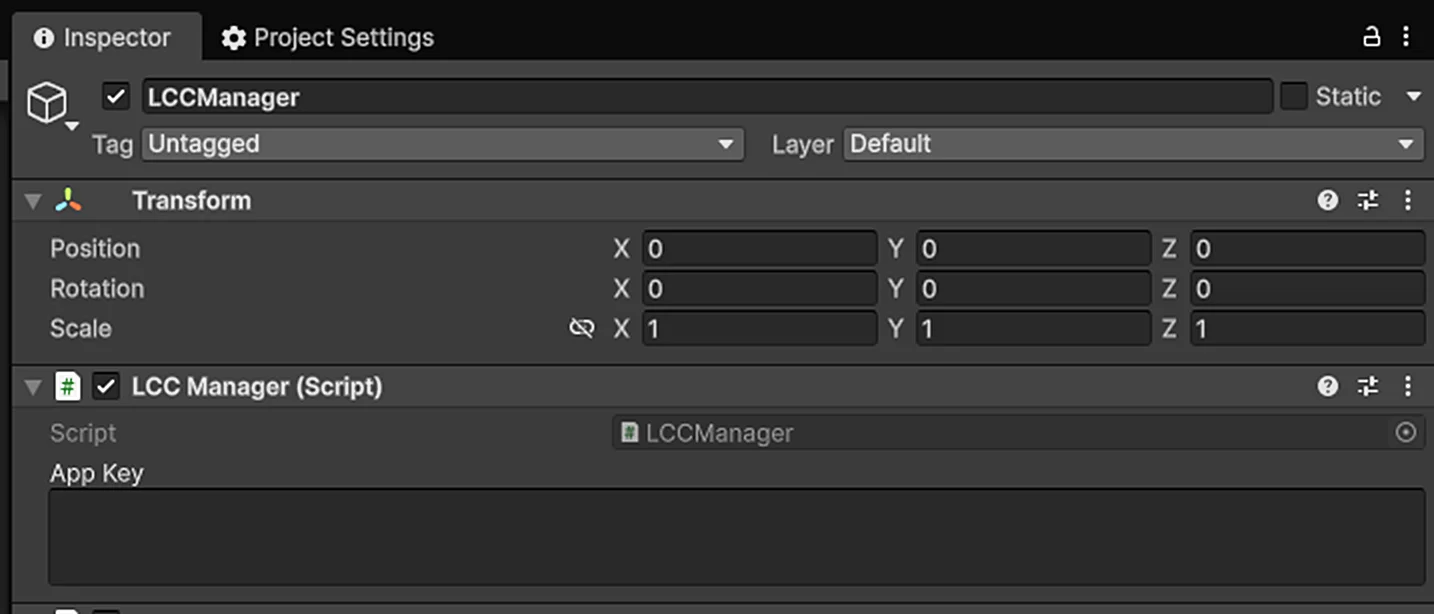
Create the LCCManager GameObject and add the LCCManager script
Create LCCRenderer01
Right-click an empty area in the Hierarchy window, select Create Empty to create an empty GameObject, name it LCCRenderer01, and set its Transform to Rotation.x = -90 and Scale.x = -1.
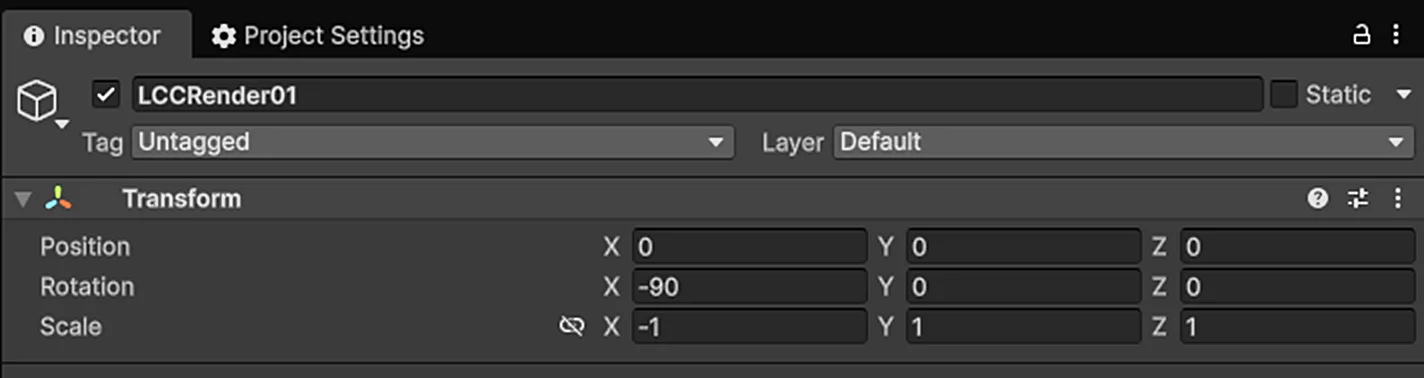
Create LCCRenderer01 and set its Transform (Rotation.x = -90, Scale.x = -1)
Create LCCRenderer02
Create another empty GameObject the same way, name it LCCRenderer02, and also set its Transform to Rotation.x = -90 and Scale.x = -1.
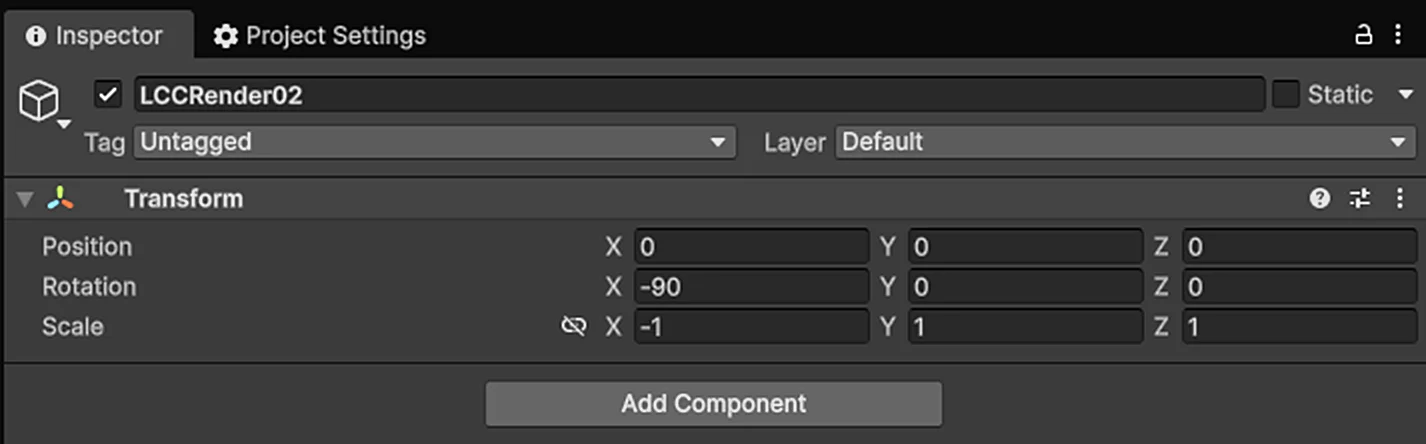
Create LCCRenderer02 and set its Transform (Rotation.x = -90, Scale.x = -1)
Note:
The Transform settings of the LCCRenderer GameObject (Rotation.x = -90, Scale.x = -1) align it with the LCC data coordinate system. For details on coordinate system alignment, see "LCC Data Coordinate System" in Unity SDK Introduction.
Step 2: Write the multi-scene rendering script
Create a new C# script named MultiRenderer.cs with the following code:
using LCCCore;
using UnityEngine;

public class MultiRenderer : MonoBehaviour
{
    public LCCManager m_manager;
    public string m_FilePath01;
    public Transform m_transform01;

    public string m_FilePath02;
    public Transform m_transform02;

    private LCCCore.Renderer m_renderer01;
    private LCCCore.Renderer m_renderer02;

    private int m_currentFileIndex = 0;

    void Start()
    {
        m_manager.SetPlatformType(PlatformType.PC);
        // Switch to MultiRender mode to allow multiple Renderers to be active and mixed at the same time
        m_manager.SwitchRenderPass(ActiveRenderMode.MultiRender);

        Debug.Log("Started ");
        m_renderer01 = m_manager.GetRender(m_transform01);
        m_renderer02 = m_manager.GetRender(m_transform02);
        m_currentFileIndex = 0;
        m_renderer01.Load(m_FilePath01, onProgress, onComplete);
        m_currentFileIndex = 1;
        m_renderer02.Load(m_FilePath02, onProgress, onComplete);
    }

    private void onProgress(float _progress)
    {
        Debug.Log($"[LCCRenderer] file {m_currentFileIndex} load progress: {_progress:P1}");
    }

    private void onComplete()
    {
        Debug.Log($"[LCCRenderer] file {m_currentFileIndex} loaded");
    }
}
Step 3: Attach the script and configure properties
- Attach the
MultiRenderer.csscript to the LCCManager GameObject in the Hierarchy window. - In the Inspector window, assign the references and paths according to the table below:
| Script property | Assignment |
|---|---|
| Manager | Drag the LCCManager GameObject onto this property |
| Transform01 | Drag the LCCRenderer01 GameObject onto this property |
| Transform02 | Drag the LCCRenderer02 GameObject onto this property |
| File Path01 | Path of the first LCC data source |
| File Path02 | Path of the second LCC data source |
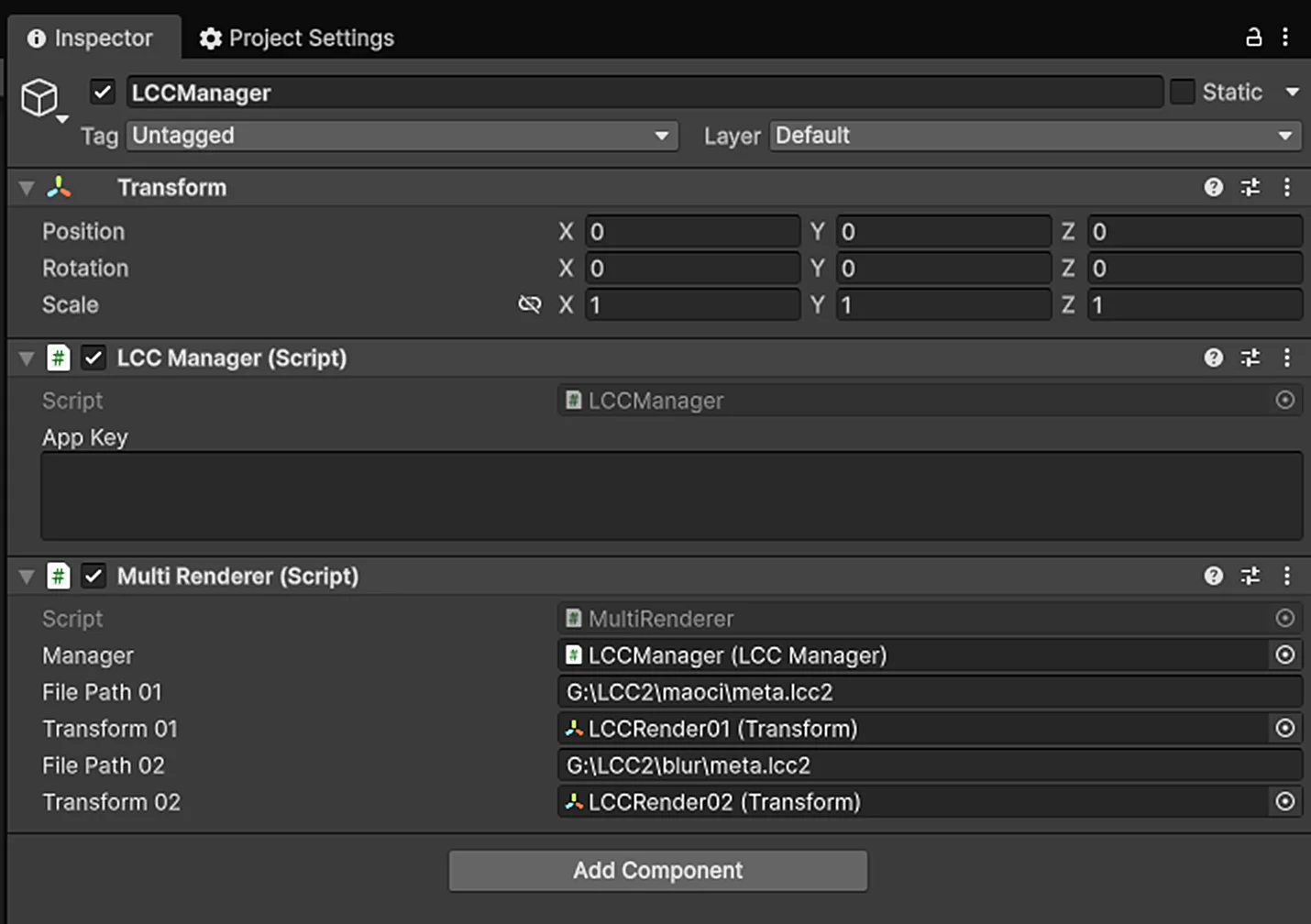
Configure the MultiRenderer script's references and data paths in the Inspector
Step 4: Run
Click the Play button in the Game window, and you will see the two LCC scenes rendered and mixed simultaneously. Change the Transform values of the LCCRenderer01 or LCCRenderer02 GameObject, and each rendered scene updates in real time.
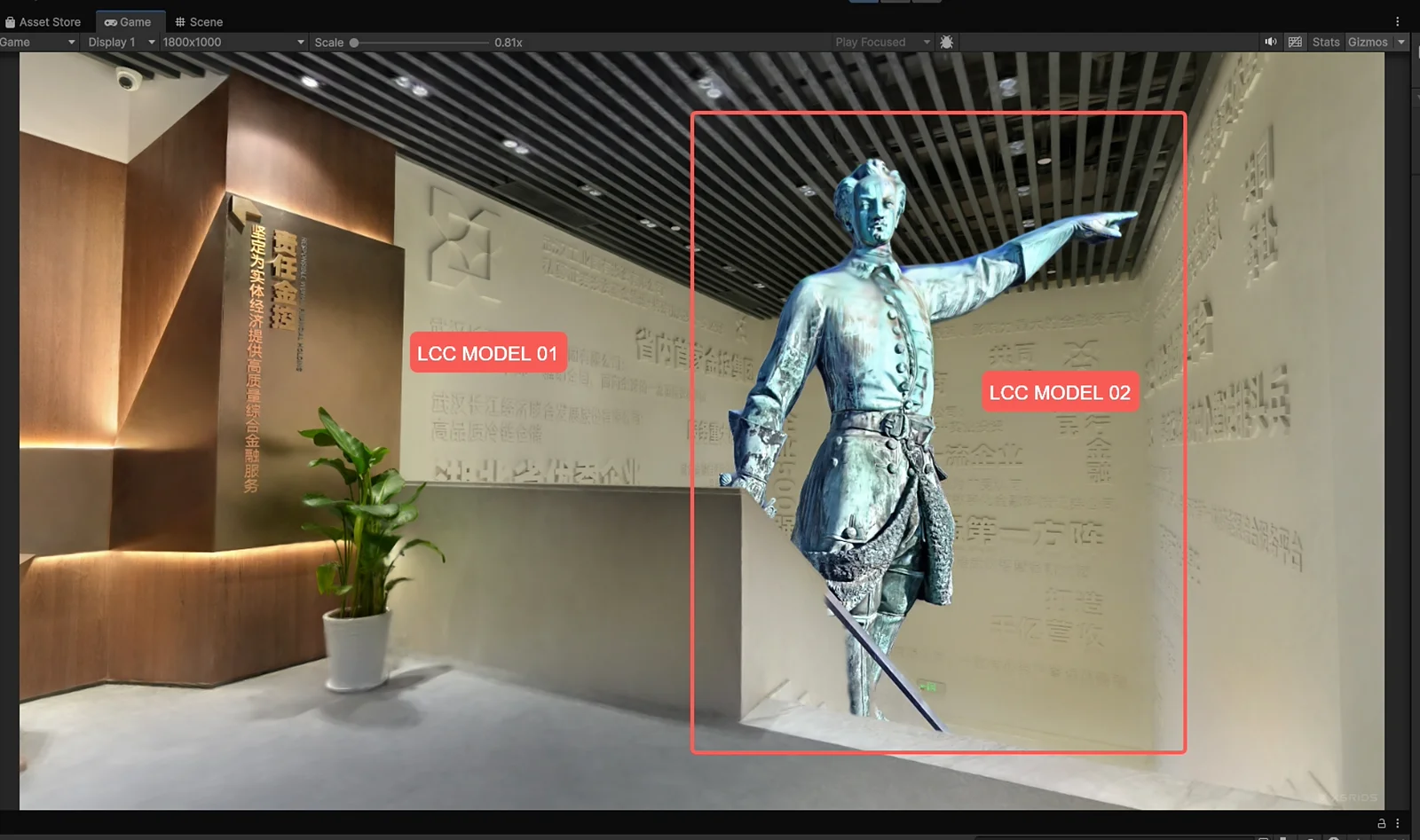
Two LCC scenes rendered and mixed simultaneously after running
Key Points
There are two key points for developing multi-LCC-scene mixed rendering:
- Switch to MultiRender mode: use
m_manager.SwitchRenderPass(ActiveRenderMode.MultiRender);to allow multiple LCC scenes to be mixed. The default isSingleRendermode, which does not allow multiple LCC scenes to be mixed. - Attach each Renderer to an independent GameObject: use
GetRender(Transform)to bind each Renderer to an independent GameObject, so that the Transform of each LCC scene can be controlled independently.
This chapter is from the official XGRIDS user manual. Official source (opens in a new tab) · Updated:



