

Open the settings panel to manage editor configurations.
Path: Menu Bar → File → Settings
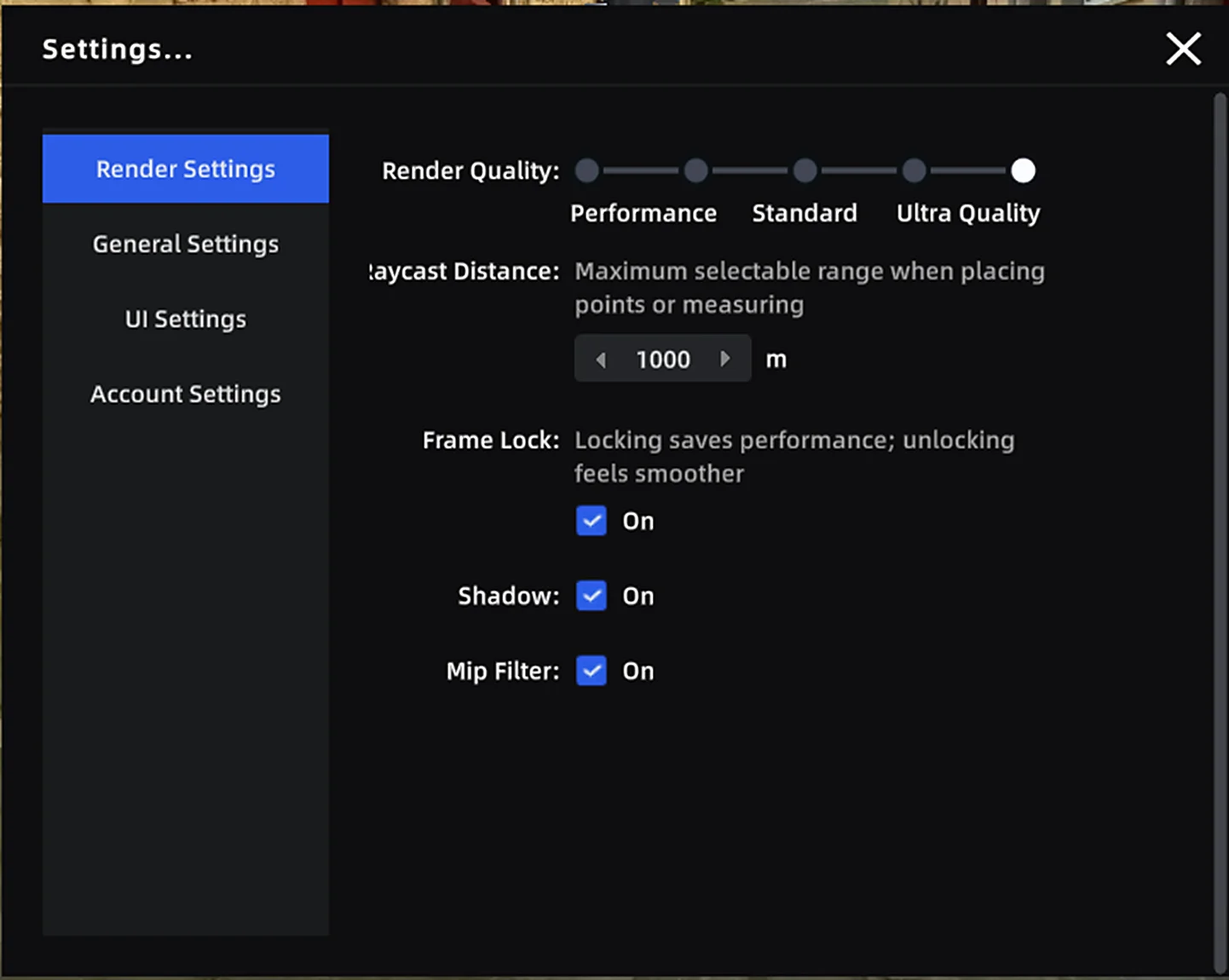
Settings Panel
Account Settings
| Setting | Description |
|---|---|
| User Info | View the current account name and avatar |
| User Agreement | View the user agreement |
| Privacy Policy | View the privacy policy |
| LCC Improvement Program | Choose whether to participate in the product experience improvement program |
| Log Out | Sign out of the current account |
UI Settings
| Setting | Description |
|---|---|
| Language | Switch the interface language (Chinese / English / Japanese / Traditional Chinese / Italian / German / Spanish / Français / Русский) |
| Show Grid | Display a reference grid at the bottom of the 3D view to help judge model position and scale |
| Grid Opacity | Adjust grid transparency: 0% = fully transparent, 100% = fully opaque |
Language changes take effect immediately and the selected language remains active after LCC Scene Editor restarts. Missing translations fall back to English. Changing the interface language does not modify project data.
General Settings
| Setting | Description | Default |
|---|---|---|
| Default Navigation Mode | The default camera mode each time a project is opened | Roaming |
| Measurement Unit System | Switch between metric and imperial units | Metric |
| Metric Unit | Choose the metric length unit (meters / centimeters) | Meters |
| Imperial Unit | Choose the imperial length unit (feet / inches) | Feet |
| Professional Measurement | When enabled, measurement results also show X/Y/Z component values | Off |
| Axis Assist | Snaps measurement points to X/Y/Z axis directions for precise horizontal or vertical measurements | Off |
| Corner Detection | Automatically detects model edges and corners during measurement to improve point selection accuracy | Off |
Note: Axis Assist and Corner Detection can also be toggled in real time during measurement using
Ctrl/Tab.
Rendering Settings
V2.2 adds a "Rendering" group to the settings panel, exposing the Shadow and Mip Filter settings that were previously only available in the SDK.
| Setting | Description | Default | Persistent |
|---|---|---|---|
| Shadow | When enabled, the avatar and overlaid 3D objects cast shadows | On | ✅ |
| Mip Filter | On: more stable performance / Off: may achieve higher clarity when matched with corresponding data. Changes take effect immediately | On | ❌ (resets to On on restart) |
| Graphics API | If you see screen artifacts or flickering, try switching this option | Direct3D 12 | ✅ |
Mip Filter Details:
| State | Use Case |
|---|---|
| On (default) | Lower performance overhead, stable rendering, suitable for daily editing |
| Off | ~1/3 higher performance cost; when used with data generated in a matching format, there is a chance of obtaining higher rendering quality |
Note: The effect of disabling Mip Filter depends on how the scene data was generated. Results may vary per scene. Mip Filter resets to On every time the application restarts and does not retain the previous selection.
This chapter is from the official XGRIDS user manual. Official source (opens in a new tab) · Updated:



