

LCC Scene Editor supports two modes: sign in to access full editing features, or use Guest Mode to preview scene content without logging in.
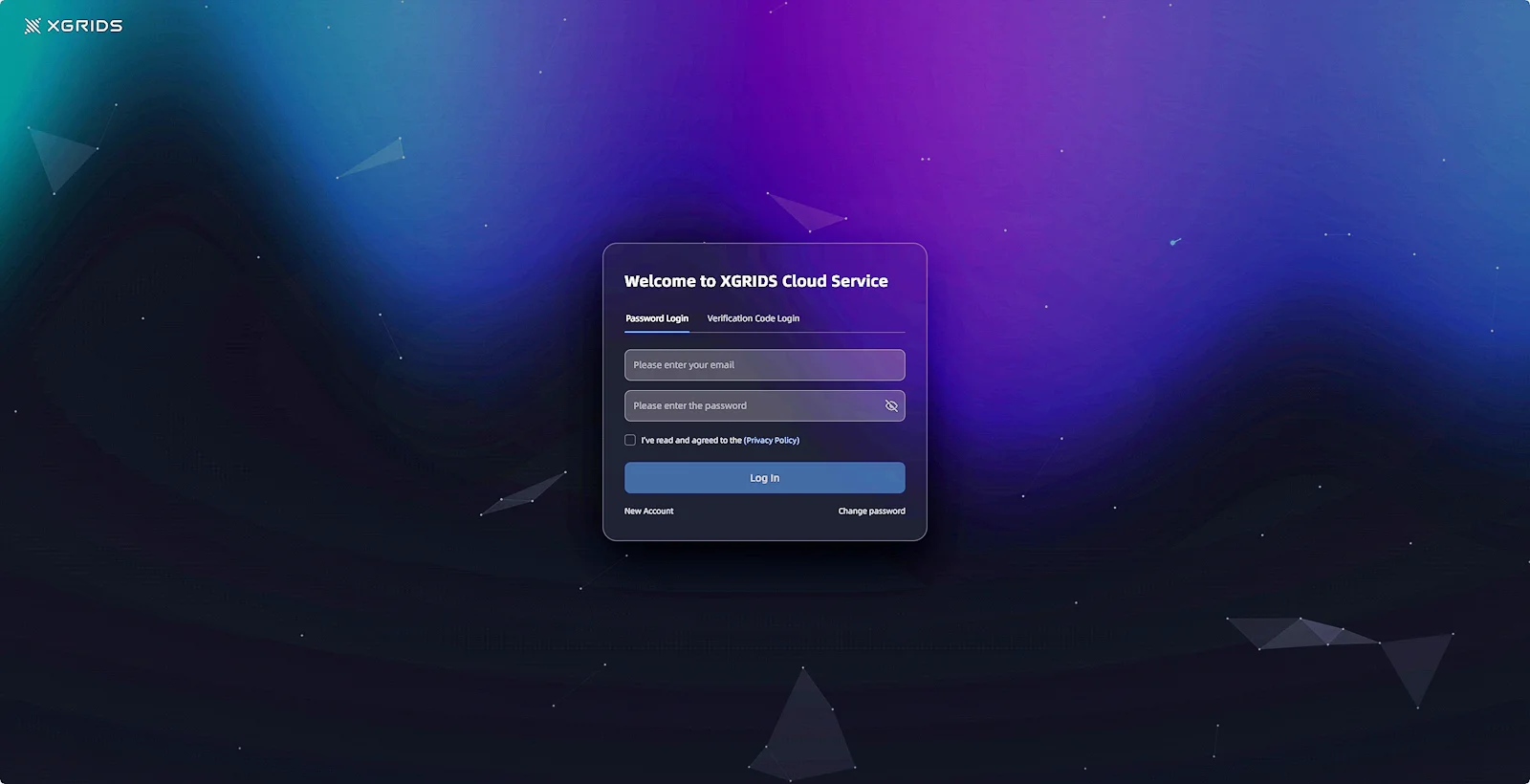
Login Screen
Login
- Open LCC Scene Editor
- If you are already logged in to LCC Studio, Editor will log in automatically and go directly to the home page
- If not logged in, click the login button — a browser window will open the login page
- Log in or register your account in the browser
- After successful login, you are returned to Editor automatically
Note: Login sessions are valid for 30 days. Re-login is required after expiry.
Log Out
Path: Settings panel → Account Settings → Log Out
Guest Mode
Users who are not logged in can open project files and preview scenes without an account.
Entering Guest Mode
- Open LCC Scene Editor without logging in
- Import or open a 3DGS / project file
- The system detects no login and automatically enters Guest Mode
- A "Guest Mode" badge and a "Login" button appear at the top
Feature Restrictions in Guest Mode
| Feature | Guest Mode | After Login |
|---|---|---|
| Scene preview and navigation | ✅ Available | ✅ Available |
| Switch between Viewer / Editor UI | ✅ Available | ✅ Available |
| Annotations, measurements, viewpoints, and other editing | ❌ Grayed out | ✅ Available |
| Save and publish | ❌ Unavailable | ✅ Available |
In Guest Mode, the scene opens in Preview Mode by default. Switching to the Edit Mode UI grays out all editing operations.
Logging In from Guest Mode
- Click the "Login" button at the top, or click any editing operation (e.g., annotation / measurement / viewpoint)
- A login prompt appears: "Login required to edit. Log in now?"
- Click "Login" → a login form appears
After successful login:
- All editing operations are unlocked
- Current browsing position and camera angle are preserved — no need to re-navigate
- The "Guest Mode" badge disappears; your username and full toolbar are shown
This chapter is from the official XGRIDS user manual. Official source (opens in a new tab) · Updated:



