

By default, the render mode (RenderMode) and load mode (LoadMode) of an LCC Actor are the same for every view. You can override these settings for a specific player or a specific SceneCapture: for example, show 3DGS to player 1 and point cloud to player 2 in split screen; or have the SceneCapture used for a minimap render a top-down point cloud and load only the main part to lower the cost.
Both the LCC1 and LCC2 pipelines support this group of interfaces. For the signatures, see ULCCComponentBase - Multi-Viewport.
Runtime Only
The parameters of these functions are runtime objects (APlayerController / USceneCaptureComponent2D) that do not yet exist during the editor placement stage, so they are not panel properties and can only be called from Blueprint or C++ while the game runs. The RenderMode / LoadMode on the panel are the global defaults that apply to every view; this group of interfaces makes a local override on top of the global values, and a view that does not call an override function keeps using the global setting.
Note: it tells cameras apart by "view identity", using the unique ID of the render view for a player view and the index of its RenderTarget for a SceneCapture. That is why you must pass the
PlayerController(not the Pawn) — a Pawn carries no information about "which viewport it is displayed in".
Overriding Per Player (split screen / multiple local players)
// Player 2's viewport shows point cloud; other viewports are unaffected
LCCComponent->SetPlayerRenderMode(Player2Controller, ERenderMode::PointCloud);
LCCComponent->SetPlayerLoadMode(Player2Controller, ELoadMode::OnlyMain);
Text Blueprint:
[Custom Event: SetupSplitScreen]
        │
        ▼
[Get Player Controller]  Player Index = 1   → Player2Controller
        │
        ▼
[Set Player Render Mode]
        Target = (LCC Component)
        Player Controller = Player2Controller
        In Render Mode = Point Cloud
The setting takes effect on the next frame. Without calling an override function, all viewports share the global setting on the panel.
Overriding Per SceneCapture (minimap / surveillance view)
// The minimap uses point cloud + main only for the lowest cost
LCCComponent->SetSceneCaptureRenderMode(MinimapCapture, ERenderMode::PointCloud);
LCCComponent->SetSceneCaptureLoadMode(MinimapCapture, ELoadMode::OnlyMain);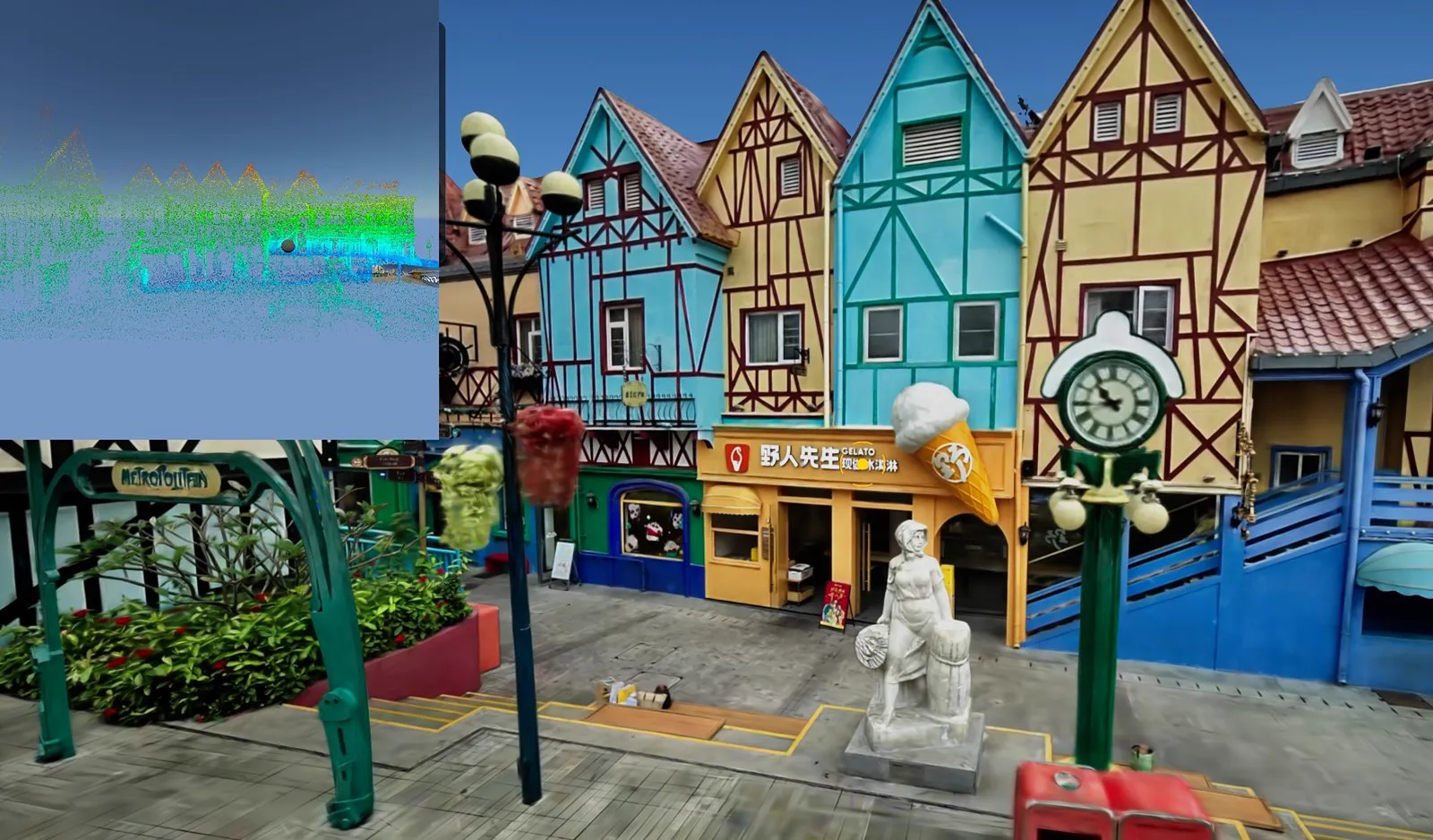
The main viewport shows 3DGS, while the SceneCapture minimap in the top-left corner uses a top-down point cloud
Prerequisite: to render LCC content in a SceneCapture, first enable SceneCaptureComponent Support in the project settings; it is disabled by default.
Mind the Call Timing (common pitfall)
A SceneCapture override only takes effect once it can compute a valid view ID. If the capture has not rendered once yet, there is no ID, and the setting is silently dropped (no error). Ensure the timing is correct with one of the two approaches below:
- Capture once, then set, then capture again:
Capture Scene→SetSceneCaptureRenderMode/LoadMode→Capture Scene. - Or tick
Capture Every Frameon the SceneCapture2D so the ViewState stays resident and the setting takes effect.
Also confirm the Texture Target of the SceneCapture2D is assigned; at an overly early moment such as BeginPlay, delay by a frame before calling.
Common mistake 1: calling
SetSceneCapture...beforeCapture Scenewhile the capture does not haveCapture Every Frameticked → the setting is lost and the image does not change.Common mistake 2: wiring
Targetto the SceneCapture2D. The correct wiring is Target = the LCC component being captured, and the SceneCapture2D goes into theIn Capture 2Dparameter.
This chapter is from the official XGRIDS user manual. Official source (opens in a new tab) · Updated:



