

Render the Unreal project on the PC and stream it to a Meta Quest 3 device through Meta Quest Link, using PC compute power for high-quality rendering.
1. Set Up the VR Project
- Start the UE5 engine
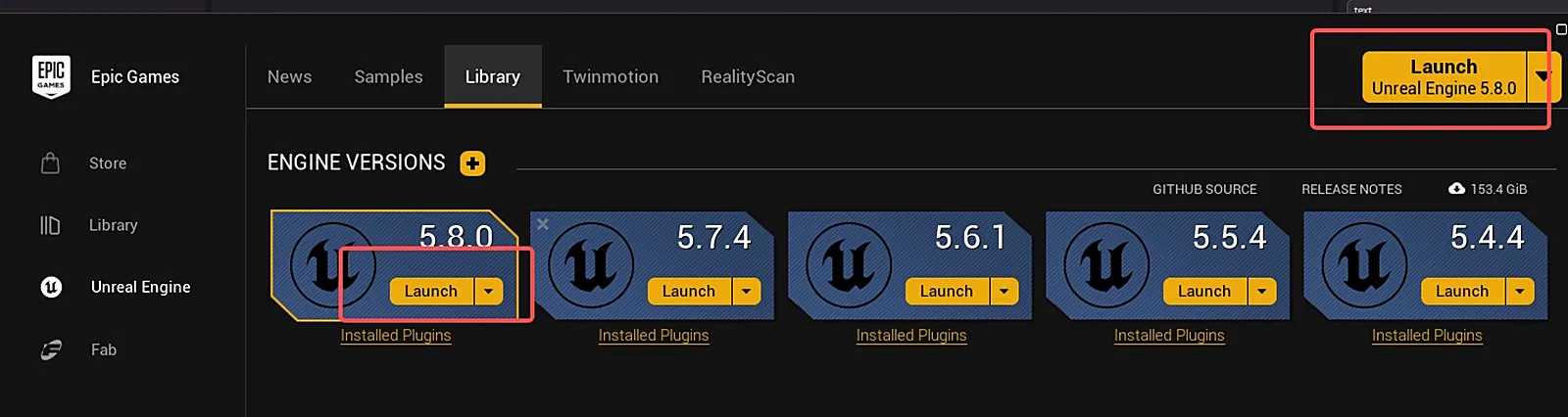
- Create a project from the VR template
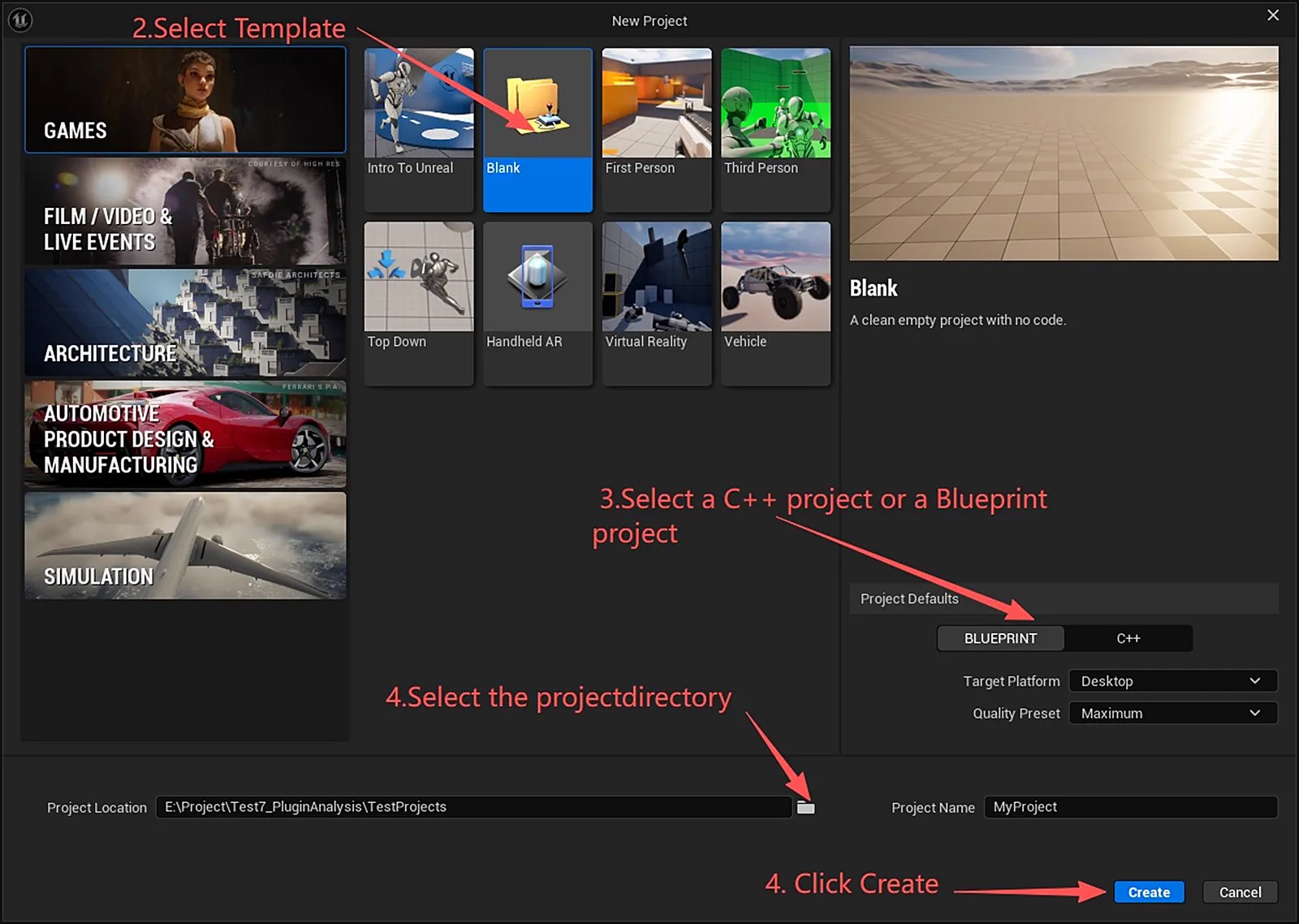
Note: select the Virtual Reality template and set the project type to C++.
The VR template enables Forward Shading by default. The plugin's Lit mode requires GBuffer and does not work under forward rendering. To use Lit mode, uncheck
Project Settings > Rendering > Forward Shading.For VR devices, keep forward rendering and turn off anti-aliasing. Deferred rendering reduces performance, so relighting with Lit mode is not recommended in VR.
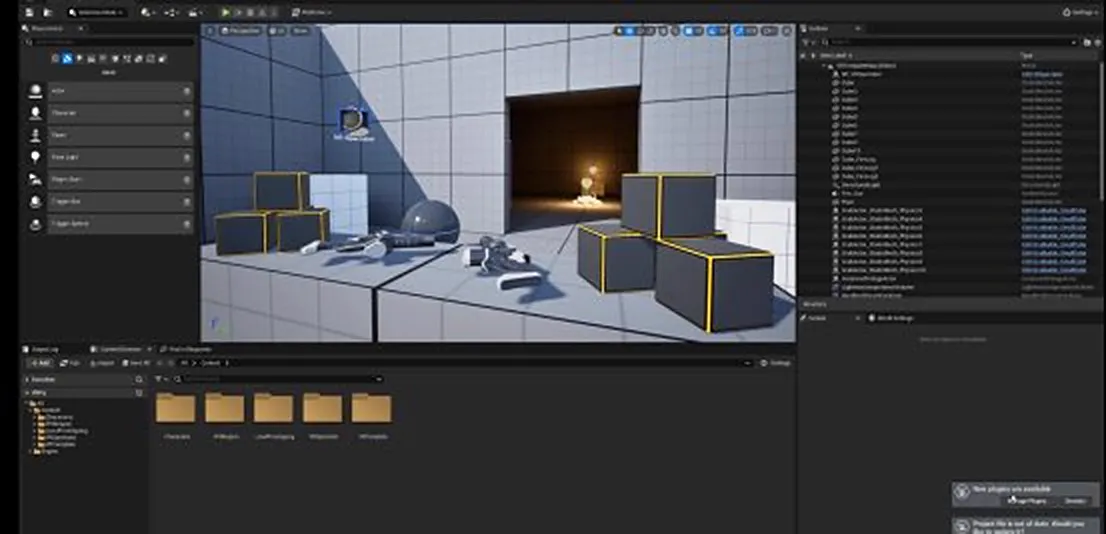
- The VR template project opens with the following interface
2. Download Quest Link
- Visit the Meta official website to download Meta Quest Link: www.meta.com
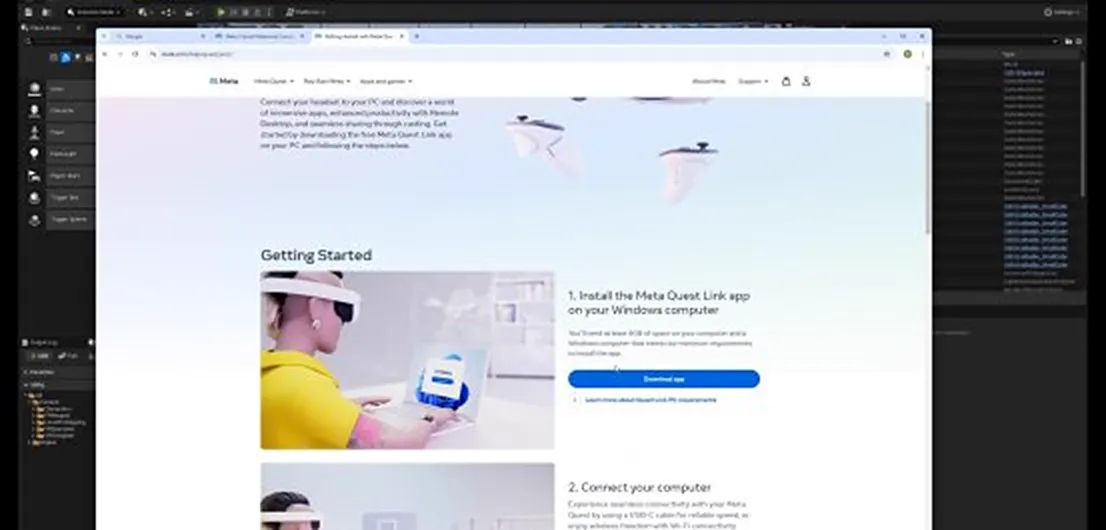
- After installation, confirm the device is connected
3. Integrate the LCC4Unreal Plugin
For the full steps of plugin installation, Actor placement, and data loading, see the quick start guide for the matching platform:
After plugin integration and data loading are complete, continue with the streaming steps below.
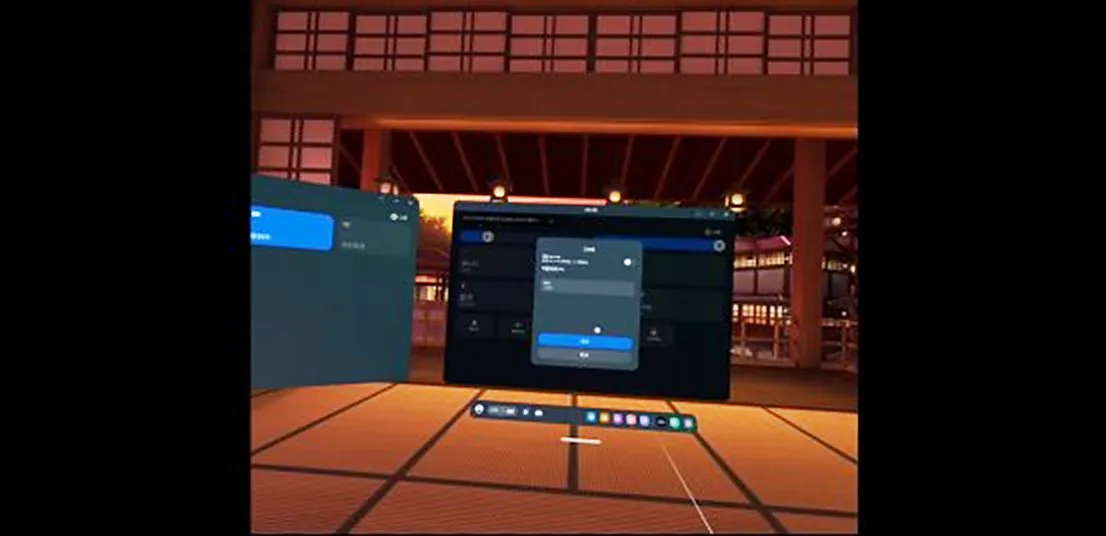
- Enable the Link feature on the VR device
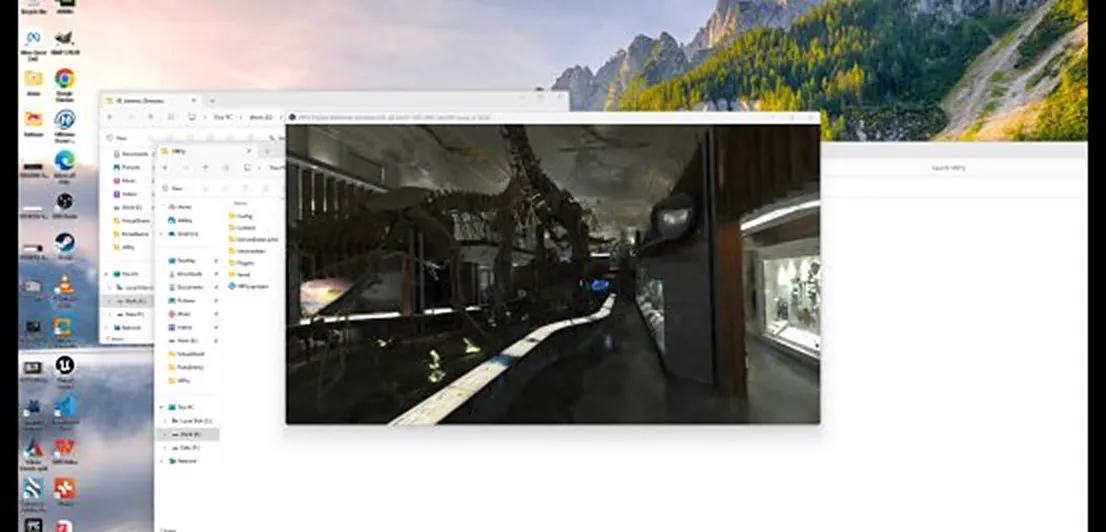
- Click VR Preview to start the streaming preview, and the image displays normally:
This chapter is from the official XGRIDS user manual. Official source (opens in a new tab) · Updated:



