

This chapter covers importing and exporting data, and opening, saving, and deleting projects.
Import Data
Import data from a file into the current window. Supported formats:
- Point clouds:
.las(1.1–1.4),.laz,.ply,.e57 - Control points / trajectory:
.csv,.txt - Mesh models:
.ply,.obj,.osgb - Other:
.lcc,.dxf(CAD)
Import LAS Data
After selecting a .las file, you can set a render offset. This offset is used only to optimize point cloud rendering in the viewport and resolve render jitter under large coordinates — it does not modify the original coordinate data in the point cloud file.
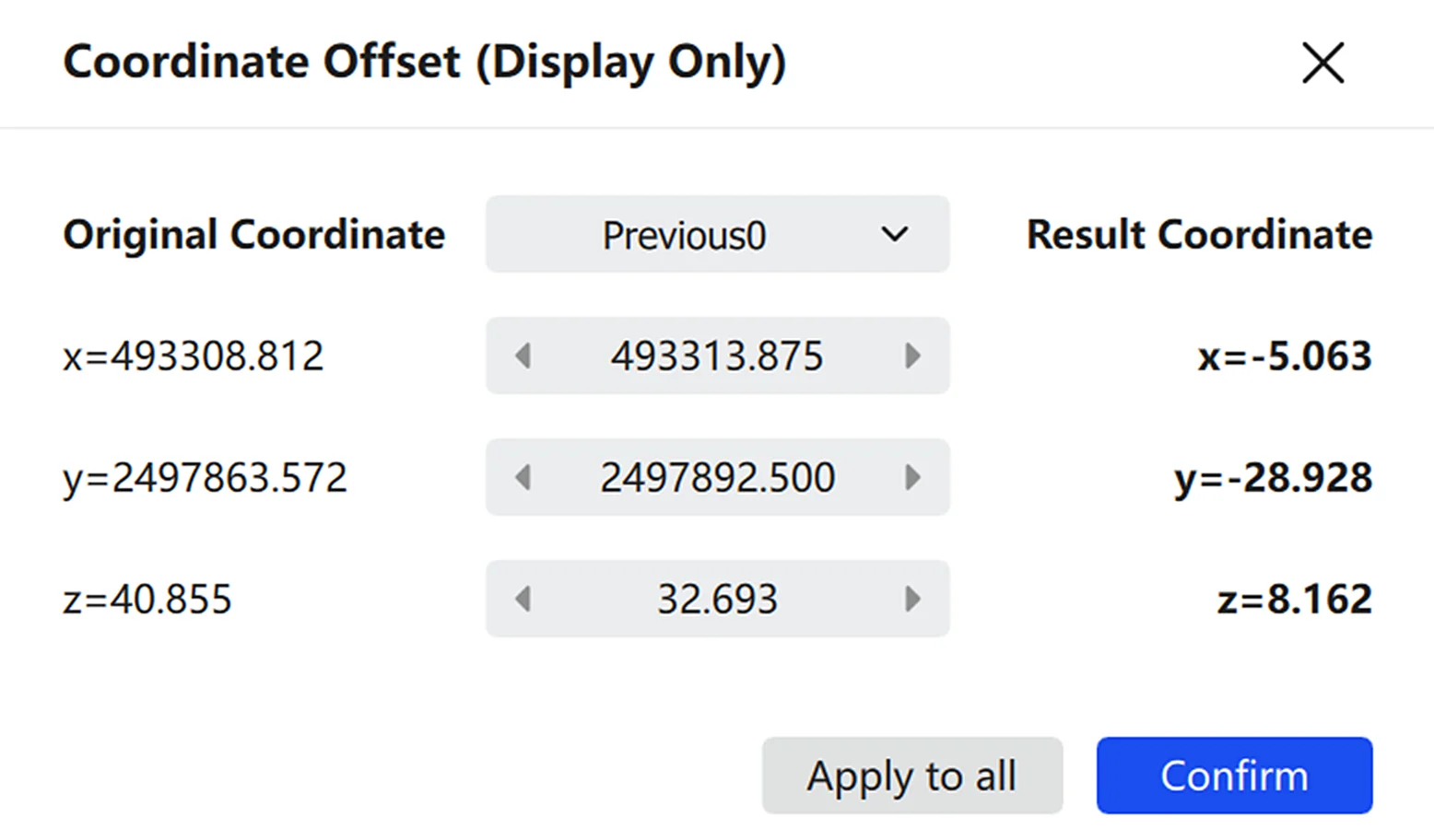
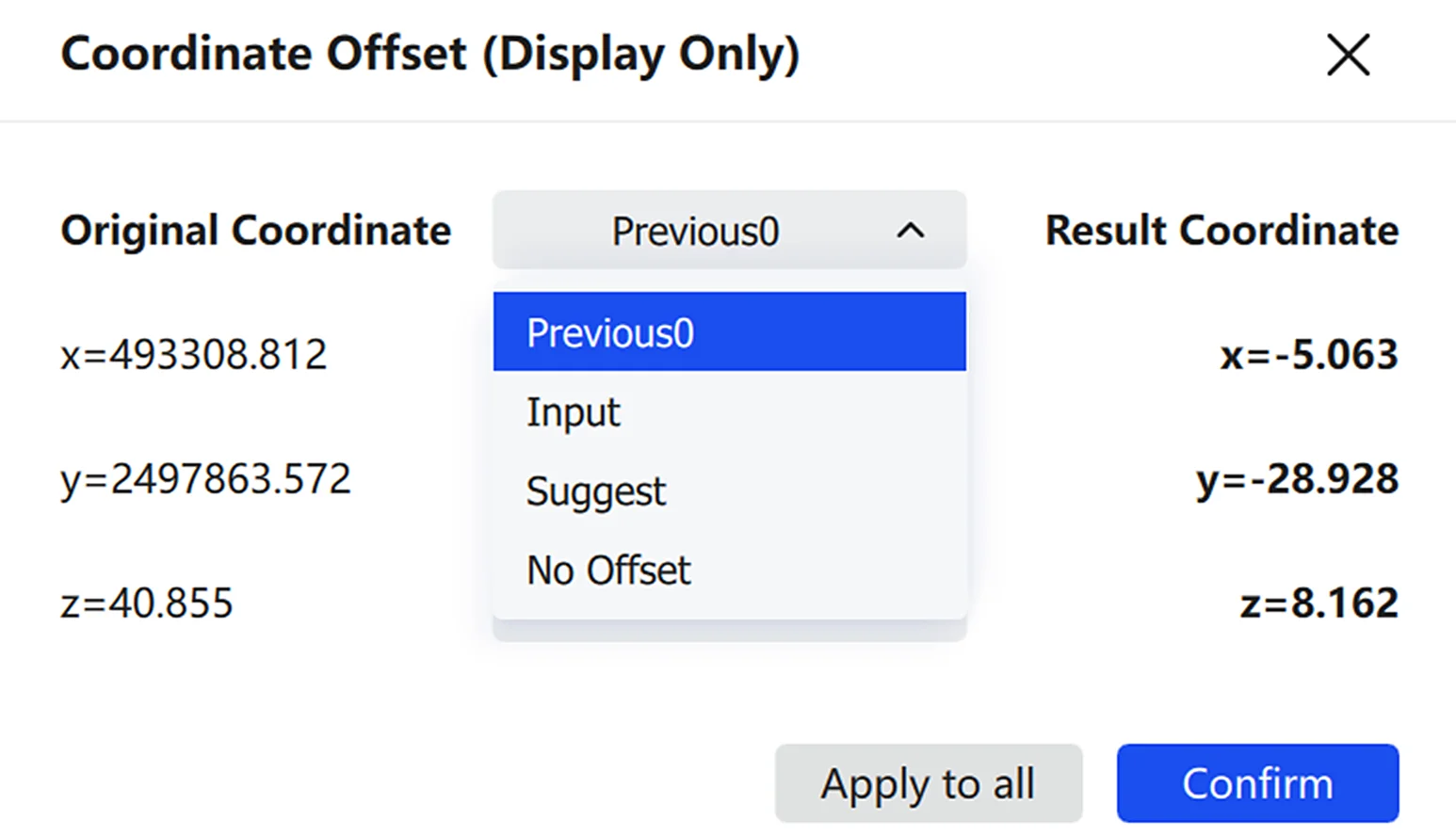
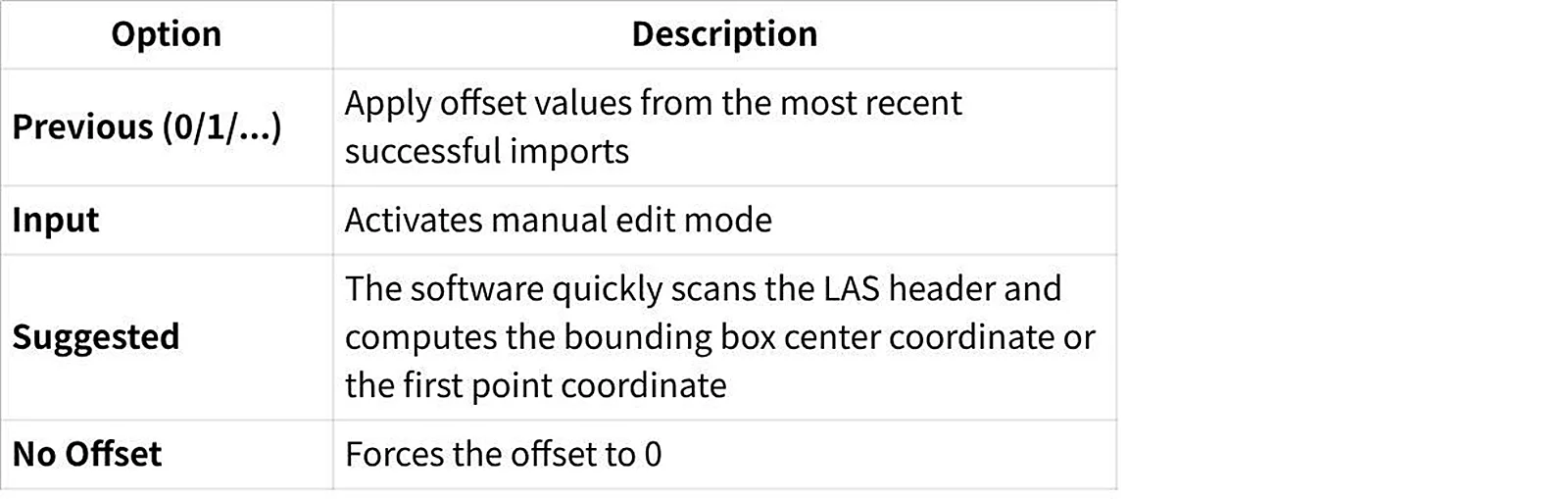
Imported point cloud data in the display window
| Option | Description |
|---|---|
| Previous (0/1/2) | Automatically remembers the offset values used in the most recent imports |
| Input | Activates manual edit mode |
| Suggested | Scans the LAS header to calculate the bounding box center or the first point's coordinates |
| No Offset | Forces the offset to 0 |
Note: If the imported point cloud renders with a striped pattern, it is usually caused by an unsuitable offset value. Delete the
*_potreefolder with the same name as the point cloud in the same directory, then re-import.
Import Control Points and Trajectory TXT/CSV Data
- After selecting a
.txtor.csvfile, choose the delimiter and whether to skip header rows in the dialog. - Click Confirm to import.
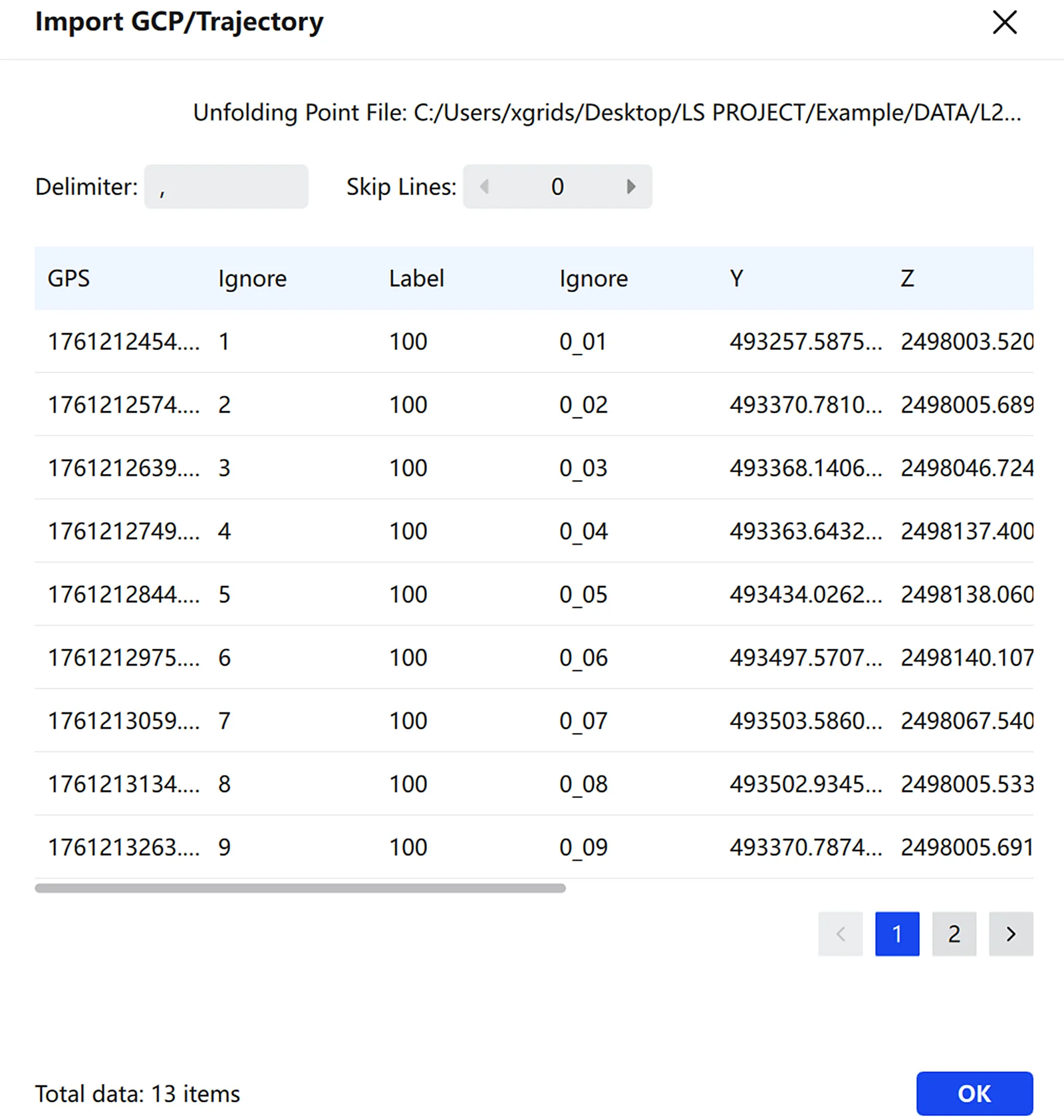
Import parameter settings
If the imported control points include label information, they are displayed with a special marker.
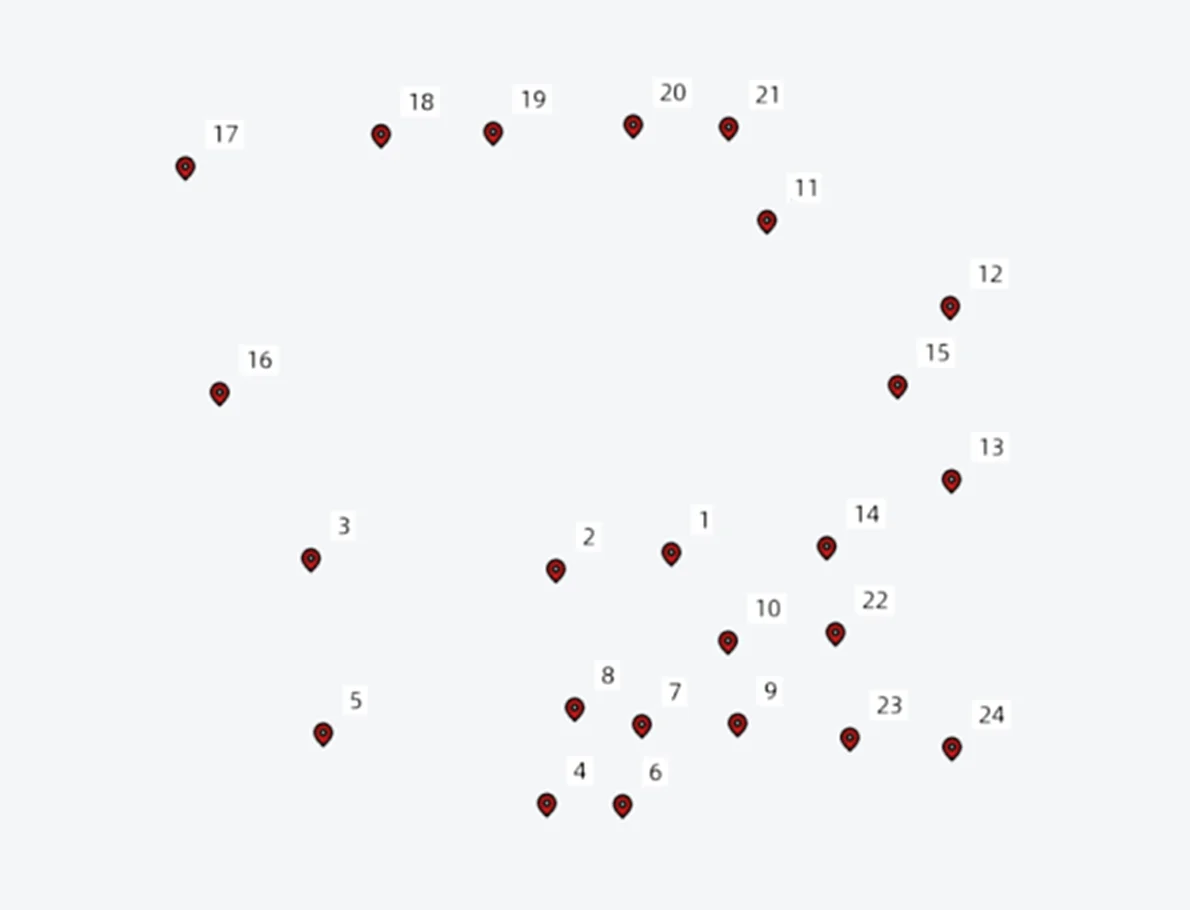
Control point display
Standard trajectory data is rendered in a point cloud–like style.
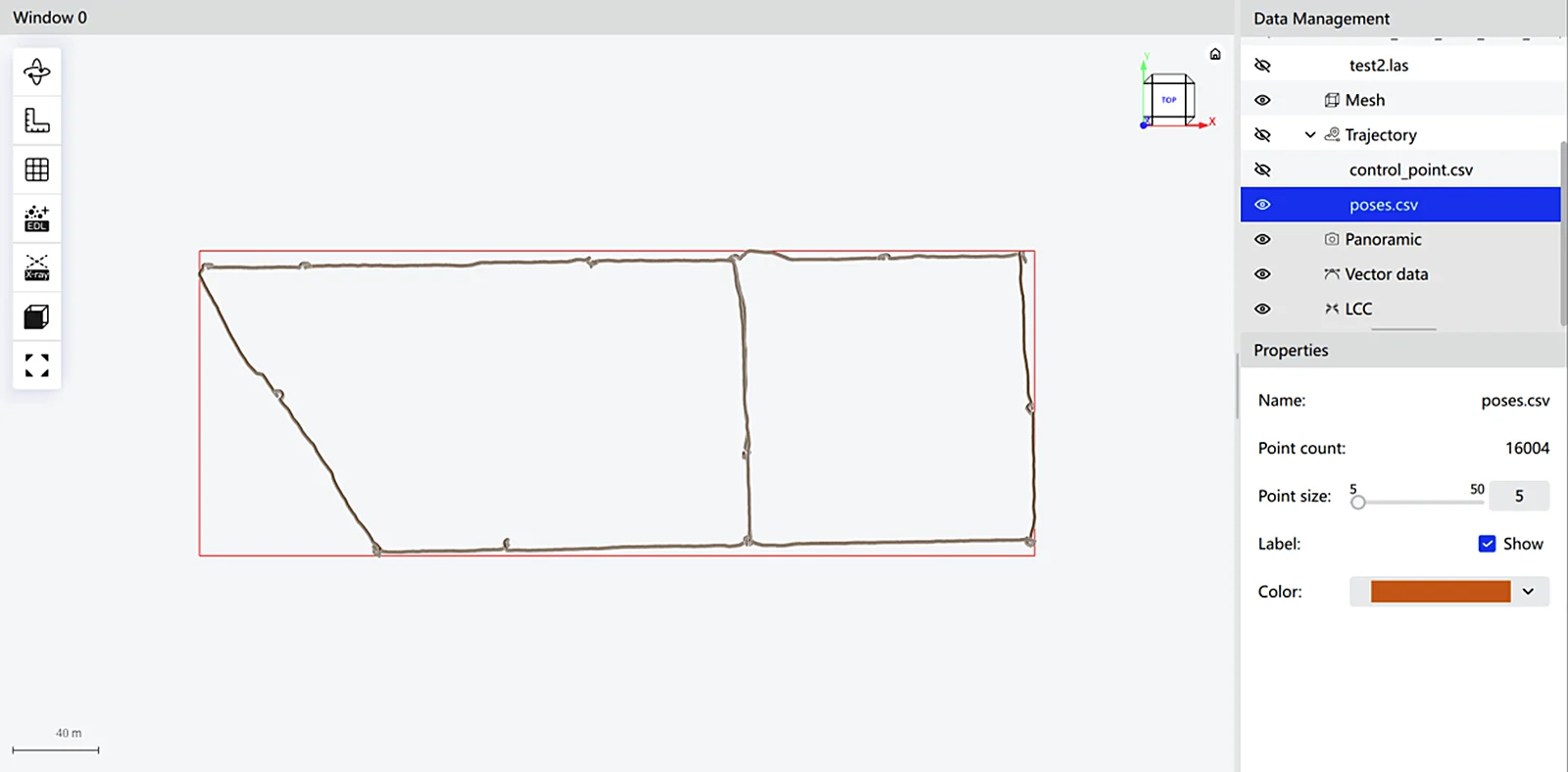
Trajectory data display
Import Mesh Model
Select a .ply, .obj, or .osgb file.
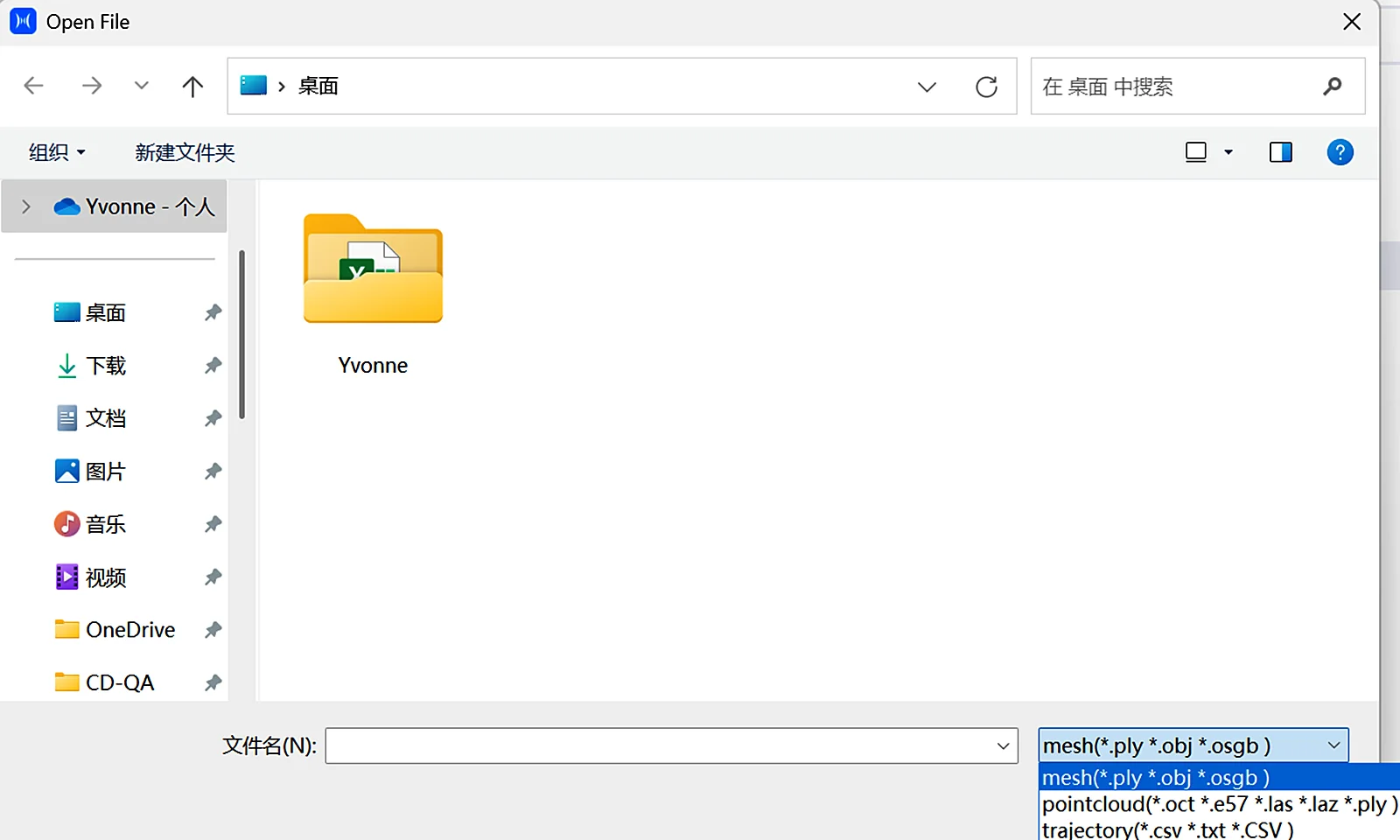
Open Project
Same functionality as in the home page. See Software Interface for details.
Export Data
Export the selected point cloud data. Supported formats: las, laz, ply, and unstructured e57.
- Select the point cloud data to export.
- Choose the export directory and filename.
- Select the export format.
- Click Export.
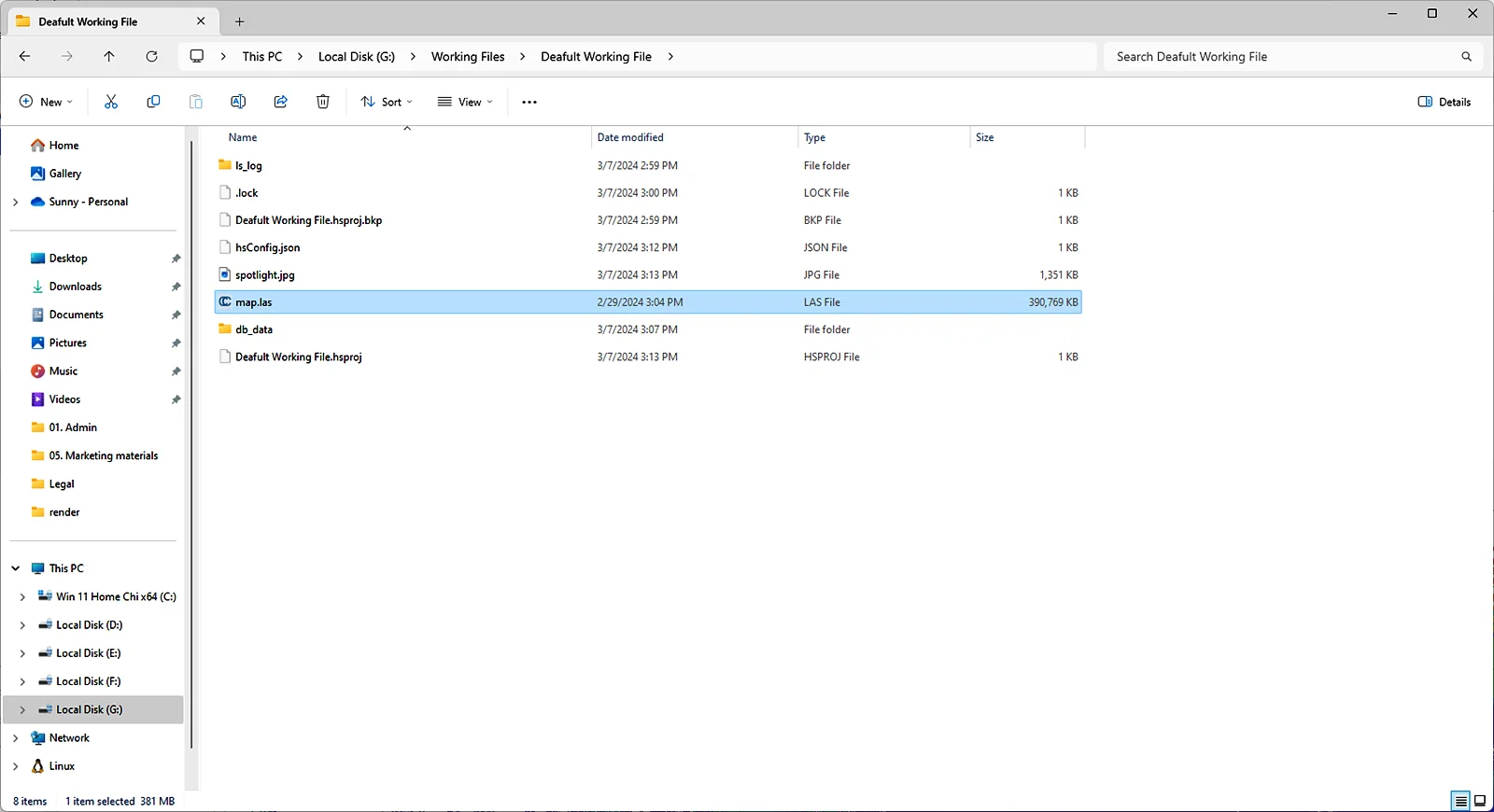
Save Project
Click Save to save the files within the project.
Delete Data
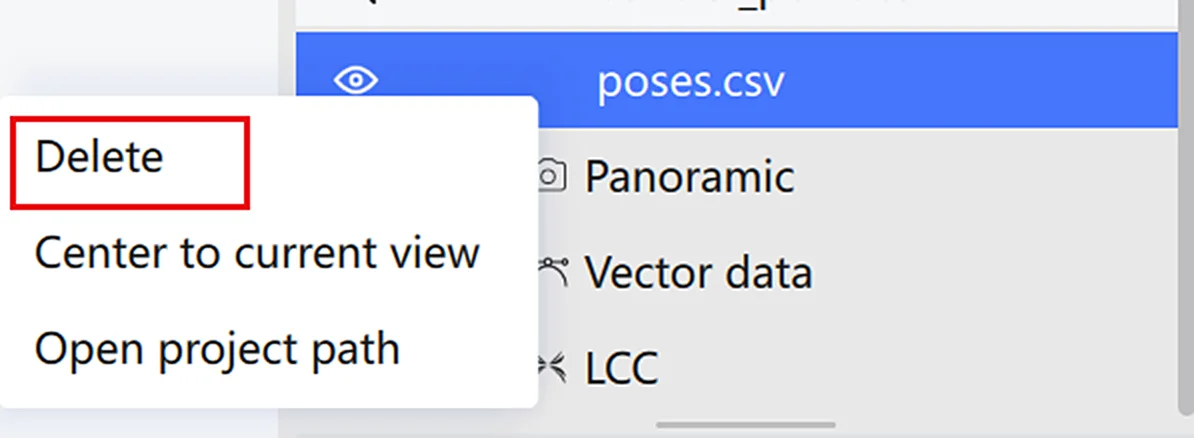
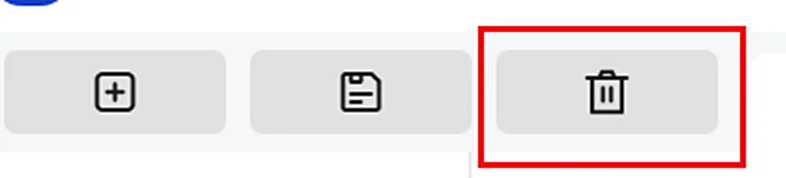
- Select one or more data files in the data list.
- Click Delete, or right-click and select Delete.
- Confirm the deletion.
Note: This action deletes data files within the project. Confirm before proceeding.
This chapter is from the official XGRIDS user manual. Official source (opens in a new tab) · Updated:



