

Sample Type
- Assume the customer server IP address is 192.168.1.217
- Assume the high-capacity data disk is at /data
Authorization parameters
- Online authorization mode (-e LICENSE_SERVER=CN -e LICENSE_KEY=AppKey delivered by XGRIDS)
- Offline authorization mode requires using the offline version image (-e CODEMETER_SERVER=192.168.xx.xx)
- The offline authorization server must be installed in advance according to the guide
- Use the MySQL 8 Docker edition as the task information persistence database
Server Configuration Confirmation
Confirm the System OS Version
Ubuntu 20.04 or above is recommended
Confirm the Base Software
docker and graphics driver support
Confirm the NVIDIA Driver Version > 545
nvidia-smi
Confirm NVIDIA Driver Persistent Mode Is Enabled
sudo nvidia-smi -pm 1
Docker Configuration
Edit /etc/docker/daemon.json, add the cgroups configuration (if the default is systemd) and a domestic docker image source, etc., then restart Docker
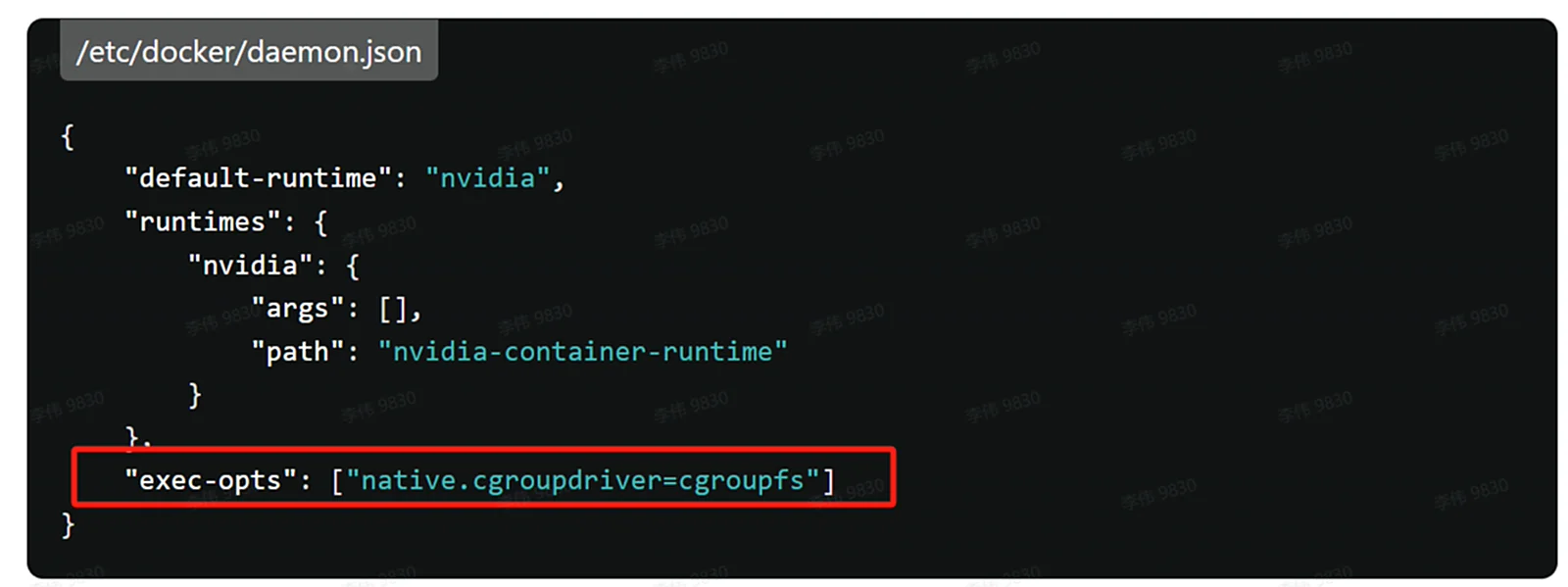
Verify with $ docker info
 ...
 Cgroup Driver: cgroupfs     # If you see Cgroup Driver = systemd, containers may lose access to the GPU
 Cgroup Version: 1
Consul Service Registry Quick Deployment
Pull the consul Image
docker pull hashicorp/consul:1.20
or, if the external network cannot connect
wget https://cdn-bukbb1.xgrids.cloud/developer/deploy/lcc/consul-120.tar.gz
gunzip -c consul-120.tar.gz | docker load
Start consul
docker run -d --restart always --name=consul -p 8300:8300 -p 8301:8301 -p 8302:8302 -p 8500:8500 -p 8600:8600 hashicorp/consul:1.20 agent -server -ui -node=n1 -bootstrap-expect=1 -client='0.0.0.0'
Access Address
http://192.168.1.217:8500/ui/
MySQL Database Quick Deployment
Pull the mysql Image
docker pull mysql:8.0
or
wget https://cdn-bukbb1.xgrids.cloud/developer/deploy/lcc/mysql-8.tar.gz
gunzip -c mysql-8.tar.gz | docker load
Start the mysql8 Image (with Character Set Setting Support)
docker run -d --restart=always --name mysql8 -e MYSQL_CHARACTER_SET_SERVER=utf8mb4 -e MYSQL_COLLATION_SERVER=utf8mb4_unicode_ci -e MYSQL_ROOT_PASSWORD=pwd123456 -e MYSQL_DATABASE=lcc-storage -v /data/lcc/mysql-data:/var/lib/mysql -p 3306:3306 mysql:8.0
💡
Production security notice: The above command is for a quick trial and can be copied and run directly; in a production environment, replace it with a strong password and use a dedicated least-privilege database account, restrict the network access scope of MySQL 3306 and phpMyAdmin, and do not expose them directly to the public network.
Pull the phpmyadmin Image
docker pull phpmyadmin
or
https://cdn-bukbb1.xgrids.cloud/developer/deploy/lcc/phpmyadmin.tar.gz
gunzip -c phpmyadmin.tar.gz | docker load
Start phpmyadmin (Database Management Interface)
docker run -d --restart=always --name phpmyadmin -e PMA_HOST=192.168.1.217 -e PMA_PORT=3306 -p 8098:80 phpmyadmin
Post-Deployment Database Interface Access Address
http://192.168.1.217:8098/index.php?route=/database/structure&db=lcc-storage
Start the LCC Docker Container Cluster
Pull and import the image
Cluster Access Address After Startup
http://192.168.1.217:8080
Start the Container Main Node (CLUSTER_MAIN)
(Using GPU 0, named lcc-rebuild-0, using port 8080 as the cluster main node)
Special parameter: the docker container domain name resolution on some servers is abnormal and cannot connect to the authorization server, in which case you can add the parameter --dns 8.8.8.8
docker run -d --restart always --name=lcc-rebuild-0 --gpus "device=0" -e APP_MODE=CLUSTER_MAIN -e SERVICE_REGISTER=http://192.168.1.217:8500 -v /data:/data -v /data/lcc-work:/work -p 8080:8080 -e CODEMETER_SERVER=192.168.xx.xx -e WEBUI=ON -e JOB_QUEUE_CONTROL=ON -e SERVICE_ADDRESS=192.168.1.217 -e SERVICE_PORT=8080 -e DB_TYPE="mysql" -e DB_USER="root" -e DB_PASSWORD="pwd123456" -e DB_HOST="192.168.1.217" -e DB_PORT="3306" -e DB_NAME="lcc-storage" -e RESULT_AUTO_ZIP=ON --dns 8.8.8.8 lcc-rebuild-cloud-server:tag-v1.1.0-offline-252856e6-20250908-01
Start the First Container Sub Node (CLUSTER_SUB)
(Using GPU 1, named lcc-rebuild-1, using port 8081, the cluster sub node)
docker run -d --restart always --name=lcc-rebuild-1 --gpus "device=1" -e APP_MODE=CLUSTER_SUB -e SERVICE_REGISTER=http://192.168.1.217:8500 -v /data:/data -v /data/lcc-work:/work -p 8081:8080 -e CODEMETER_SERVER=192.168.xx.xx -e WEBUI=OFF -e JOB_QUEUE_CONTROL=OFF -e SERVICE_ADDRESS=192.168.1.217 -e SERVICE_PORT=8081 -e DB_TYPE="mysql" -e DB_USER="root" -e DB_PASSWORD="pwd123456" -e DB_HOST="192.168.1.217" -e DB_PORT="3306" -e DB_NAME="lcc-storage" -e RESULT_AUTO_ZIP=ON --dns 8.8.8.8 lcc-rebuild-cloud-server:tag-v1.1.0-offline-252856e6-20250908-01
Start Other Nodes (for Example, the Second Sub Node Using GPU 2)
To make it easier to distinguish among multiple containers, it is recommended to modify the numeric index in the parameters in order. For example
Refer to the parameters of the first sub node
--name=lcc-rebuild-1 --gpus "device=1" -p 8081:8080 -e SERVICE_PORT=8081
Modify the parameters of the second sub node:
--name=lcc-rebuild-2 --gpus "device=2" -p 8082:8080 -e SERVICE_PORT=8082
Stop the Cluster
docker stop lcc-rebuild-0
docker stop lcc-rebuild-1
...
Delete the Cluster
docker rm lcc-rebuild-0
docker rm lcc-rebuild-1
...
This chapter is from the official XGRIDS user manual. Official source (opens in a new tab) · Updated:



